 Binarynights

Edited to Add (September 30, 2024): We are happy to announce that ForkLift’s direct integration with Google Drive has been fully restored. After completing Google’s Cloud Application Security Assessment (CASA), you can now connect to Google Drive without any warnings or issues. Please check out this post for details on reconnecting.
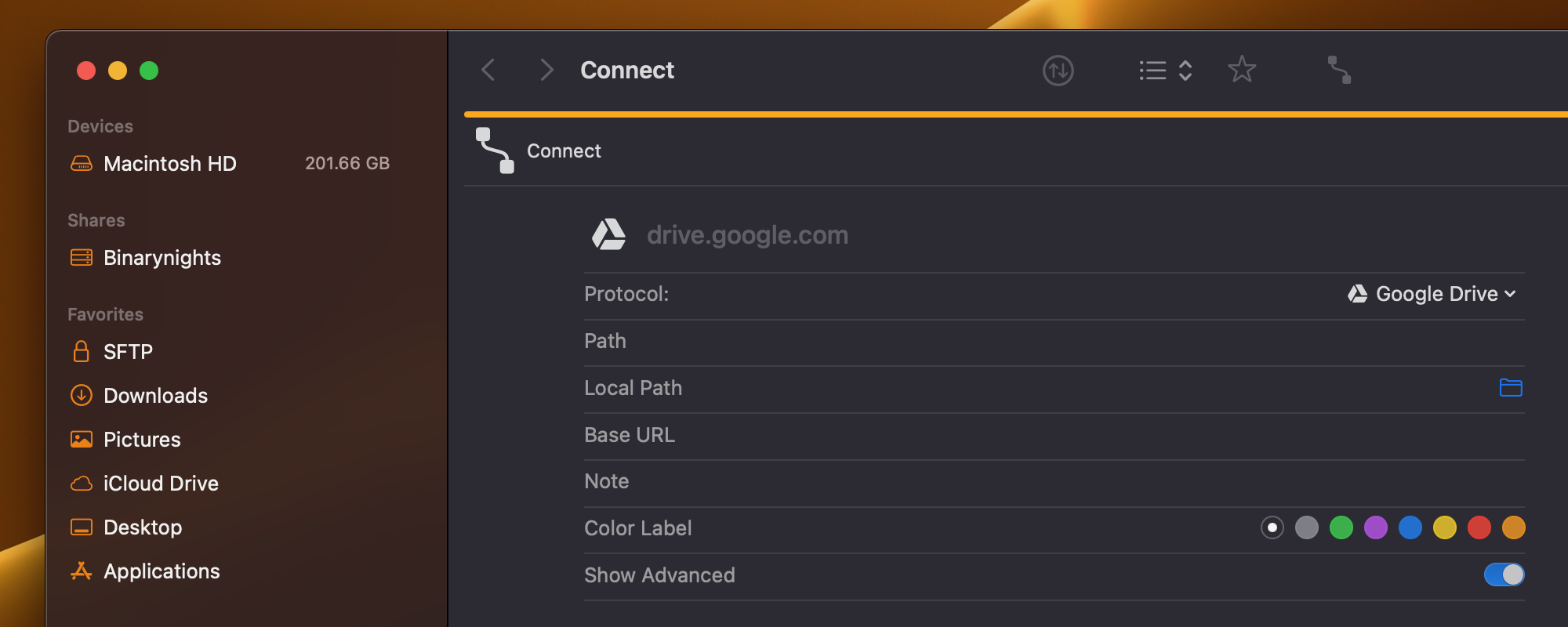
Recently, Google has limited or blocked direct connections to Google Drive through ForkLift. Depending on whether users have previously connected to Google Drive through ForkLift, they may encounter one of two warnings when trying to connect via the Connect Panel.
- Users with Previous Connections: If users have connected to Google Drive through ForkLift before, they can still connect but will see a warning that says, “Google hasn’t verified this app.” To proceed, they can click “Advanced” and then acknowledge that Google does not consider the connection safe.

- Users Without Recent Connections: If users have not recently connected to Google Drive through ForkLift, they are completely blocked and see a “This app is blocked” warning, preventing any further action.
Why Has Google Blocked ForkLift’s Connection to Google Drive?
Previously, Google allowed ForkLift to access, edit, create, and delete files on Google Drive when users granted permission. This level of access is necessary for a file manager like ForkLift to function properly with files stored on Google Drive.
In the past, Google did not require a thorough review of apps that were allowed to work with data stored in Google Drive accounts. However, as online security has become more important, Google now requires apps like ForkLift to undergo the Cloud Application Security Assessment (CASA). This assessment ensures that apps meet strict security standards to protect user data and maintain secure integrations.
Undergoing the CASA process helps ForkLift identify and fix any security issues, safeguarding user data and ensuring our security practices are transparent. However, meeting these requirements can be a lengthy process. Even if ForkLift meets all standards immediately, the assessment can take up to six weeks. If significant changes are needed, it could take much longer. We are committed to meeting all the requirements, and we hope to restore the ability to connect to Google Drive in the future.
How to Access Google Drive in ForkLift
While we work to re-establish a direct connection to Google Drive in ForkLift, you can use a workaround to access your Google Drive files:
- Download and Install the Google Drive Desktop App: Ensure the Google Drive desktop app is installed on your Mac and that you are logged into your Google account within the app. You can download the app here.
- Locate Your Google Drive Folder:
- In ForkLift, go to the menu and select Go > Go to Folder.
- Paste the following path and press Enter:
~/Library/CloudStorage
- Add Google Drive to Your Sidebar:
- Drag your Google Drive folder from that location to the sidebar of ForkLift to add it as a favorite.
- You can now easily access your Google Drive files from the ForkLift sidebar.
By following these steps, you can continue to manage your Google Drive files using ForkLift until direct integration is available again.
Is it possible two connect two Drive accounts and how?
You can connect to as many Google Drive accounts as you want. You can connect through the Connect Panel of ForkLift. You can open multiple tabs and you can connect in those tabs to different accounts. You can select in the browser (step 3 – see below) which account you want to connect to:
1. Open the Connect Panel: in ForklIft, open the Connect Panel with the Command-K keyboard shortcut or from the menu: Go > Connect
2. Select Google Drive as the protocol and click Connect
3. Authenticate: Follow the OAuth authentication steps to link your Google account.