 Binarynights

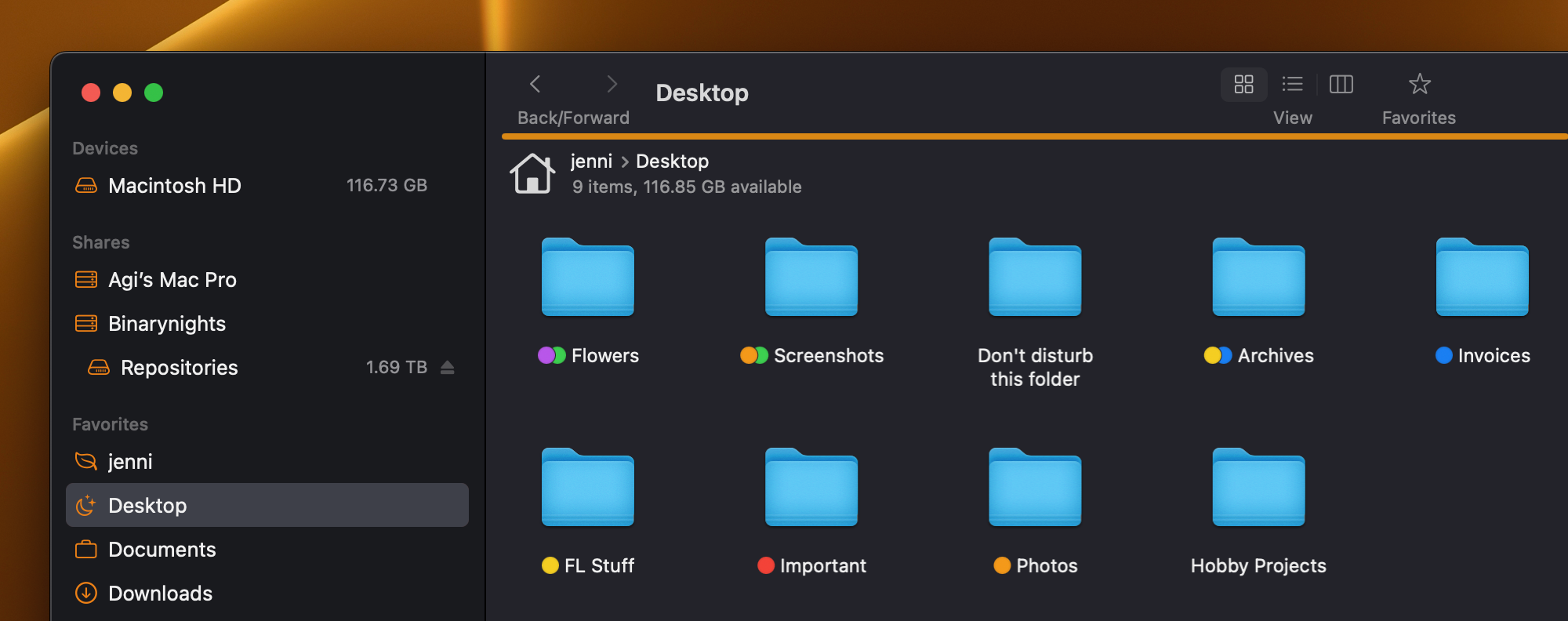
In version 4.2.1, we have added the option to display up to three color tags in both Column and Icon View. We have also fixed some minor issues that arose from allowing up to three color tags in List View.
A small but very handy new feature is the ability to hide files and folders without the need to rename them and add a dot in front of their names. Now, you can flag a file to make it invisible or make it visible again. To hide a file or folder, simply check the Hidden checkbox in the Preview Pane (Info Window). To make the item visible again, uncheck the box. Of course, you will need to display invisible items first, which you can do either from the Toolbar or by selecting View > Show Invisible Files from the menu.
The update also includes multiple fixes and improvements, especially related to tagging, alias and symlink files, Amazon S3 and OneDrive transfers, and batch renaming.
IMPORTANT: Since the multi-rename rules containing the date format pattern ‘Y’ have been updated, any multi-rename favorites using this pattern will need to be adjusted to function correctly after the update.
Here is the full changelog for ForkLift 4.2.1
New
- Displays up to three color tags in Icon View
- Displays up to three color tags in Column View on macOS 13 or later
- Spring-loads folders in Icon View
- Adds an option to hide items by checking the “Hidden” option in the Info Window
- Shows file information of the linked item of alias and symlink files under “Original” in the Info Window
Improvements
- When the “Restore windows and tabs on startup” setting is enabled, the Connect Panel and the Favorite Manager are no longer restored after restarting ForkLift
- Folders are shown on top when grouping by kind, provided the “Show folders on top” setting is enabled
- Displays a preview of the linked item when QuickLooking alias and symlink files
- Improves retry handling for OneDrive transfers
- Option to resize the ForkLift window to a smaller size
Fixes
- Fixes a display issue with color tags when multiple tags have the same color
- Fixes an issue with the old-style color labels, which was introduced in version 4.2
- Fixes an issue where alias and symlink files were not grouped correctly according to their own tags when grouping by tags
- Fixes an issue in the Multi-Rename window where changing the case of items resulted in conflicts
- Fixes an issue in the Multi-Rename window where adding the year to names used the date format pattern ‘Y’ instead of ‘y,’ which have different meanings
- Fixes an issue on Amazon S3 where the content type of large files (more than 5 GB) wasn’t set correctly after upload
- Fixes an issue on Amazon S3 where the content type was always set to “application/octet-stream” when transferring items from another remote location to Amazon S3
- Fixes an issue where dragging items over a tab did not activate the corresponding tab
- Fixes an issue that made it impossible to display the SCM status in List View, introduced in version 4.2
- Fixes small localization issues
- Numerous minor fixes and improvements
I cannot add my OneDrive account to Forklift 4.2.1. After the last step of granting access to the account the app closes unexpectedly and the entry in may favorites is not created (MacOS 15.2).
I’m sorry to hear that. Thank you for reporting. We are looking into this issue right now. Until this bug is fixed, you can downgrade to the previous version and create a favorite to OneDrive, the favorite should then work in the latest version as well. https://download.binarynights.com/ForkLift/ForkLift4.2.zip
Why does the upgrade from 4.2 to 4.2.1 require a license input? I supplied the licence key and the app rejects it. Now I cannot use 4.2.1 and have to switch back to 4.2 to continue using it.
Is this intentional?
This version should not require a license input. However, ForkLift 4.2.1 is the first update released more than 365+100 days after the initial ForkLift 4 launch. If you purchased a license with one year of free updates, plus a bonus of an additional 100 days, version 4.2.1 is the first update that falls outside of this coverage.
To check if this is the case, please go to ForkLift > About ForkLift and confirm the date listed there. If that date is later than yesterday, please let us know and we’ll investigate further. If it’s earlier, you can either downgrade to version 4.2, which is covered by your license, or continue using version 4.2.1 in trial mode. If you’d like to continue using 4.2.1 with future updates, you may need to purchase a new license.
Indeed it is. I did not realise that the license model has changed and I thought renewal is only required for major version changes.
Well this is a bummer. Will stick to 4.2 till 5.
I’m sorry to hear that you missed the details about the updated licensing model. We have done our best to communicate this information clearly, but I understand how it could have been overlooked.
Since you most likely upgraded from ForkLift 3 and your license has already expired, it is very likely that you missed the opportunity to claim your upgrade bonus. To claim the bonus, you can download a previous version of ForkLift and enter your ForkLift 3 license under ForkLift > Claim Upgrade Bonus in the menu.
Use this version to do that: https://download.binarynights.com/ForkLift/ForkLift4.1.7.zip
This will give you an additional 100 days of free updates.
You can, of course, continue using the last version covered by your license for as long as you like – there is absolutely no pressure to purchase a new license. While we are continuously developing ForkLift, the change in our business plan means that there is no specific goal to bring out a new major version anytime soon. That said, if you are waiting for ForkLift 5, it is worth considering that it may be quite far off.
Multiple color tags in all views—I can’t believe it! My love affair with ForkLift has been rekindled. The best Finder replacement has finally caught up with the UI improvements Apple introduced back in 2013.
Sarcasm aside, I’m genuinely happy it’s finally here!
We may be late to the color tag party, but at least we brought snacks. Enjoy the update!
Thanks. You have no idea how happy this update has made me! Happy new year to everyone at Binarynights.
I finally solved it by copying some scripts from info.plist inside 4.1.5! Here’s what I changed
NSAllowsArbitraryLoads
I’m not sure why, but in 4.2.1
NSAllowsArbitraryLoadsInWebContent
NSAllowsLocalNetworking
Please check this and fix it before releasing the next version.
Those settings are set to YES in the Info.plist by default. We have checked this in the code when you reported this issue. When you download a new version manually from our store, those settings must be set to YES. Please download the latest version and check its Info.plist https://download.binarynights.com/ForkLift/ForkLift4.zip
Hello, I don’t know what you did with this new version, but I encounter a lot of behaviors… strange and very annoying in the end… Sorry!…
– Clicking on its icon from the Dock does not display FL windows!…
– The “Services” context menu is missing if you click on an item!…
– I copied a large folder from a NAS to my Mac and the procedure never stopped even though the entire folder had been copied!…
I should point out that I have been using FL for months and that I have not changed any settings in the application.
All this is disturbing. From now on, I only use FL to have occasional access to my NAS (the macOS Sonoma Finder is still not up to the task where it crashes every time I manipulate files…), but more as an alternative to the Finder for all regular actions. Too bad.
I’m sorry you are experiencing these issues.
1. Dock Icon Issue: Clicking the Dock icon should open ForkLift. If this isn’t happening, please try restarting your Mac, as it might resolve the problem. So far, we haven’t received similar reports, and a malfunction like this would likely have been reported by other users as well.
2. Services Context Menu: The Services menu is still available in ForkLift. If it’s not appearing, restarting your Mac could help here too.
3. Folder Upload Issue: We will investigate the issue you reported about the upload process not completing after copying a large folder from your NAS. We are aware of a similar issue but it needs further investigation.
If restarting your Mac doesn’t solve the first two issues, then contact us via email at support [at] binarynights [dot] com