 Binarynights

See More Details in the Activities Pane
When transferring files in ForkLift, you can track progress in both the toolbar and the Preview Pane (View > Show Activities). However, limited space in the Activities Pane made it difficult to see all the details of a transfer.
Now, if you hover over the bottom line of a transfer, a tooltip will appear, displaying full information about the file size, transfer speed, and remaining time – giving you a clearer overview at a glance.
Larger Icons in List View
A much-requested feature is finally here: you can now set a large, 32-pixel icon size in List View.
To adjust this setting, open View Options (Command-J or View > Show View Options) and change the Icon Size from 16 to 32. Keep in mind that each tab has its own settings, so if you want large icons across all tabs, you will need to adjust this setting individually for each one.
Tags Favorite Group in the Sidebar
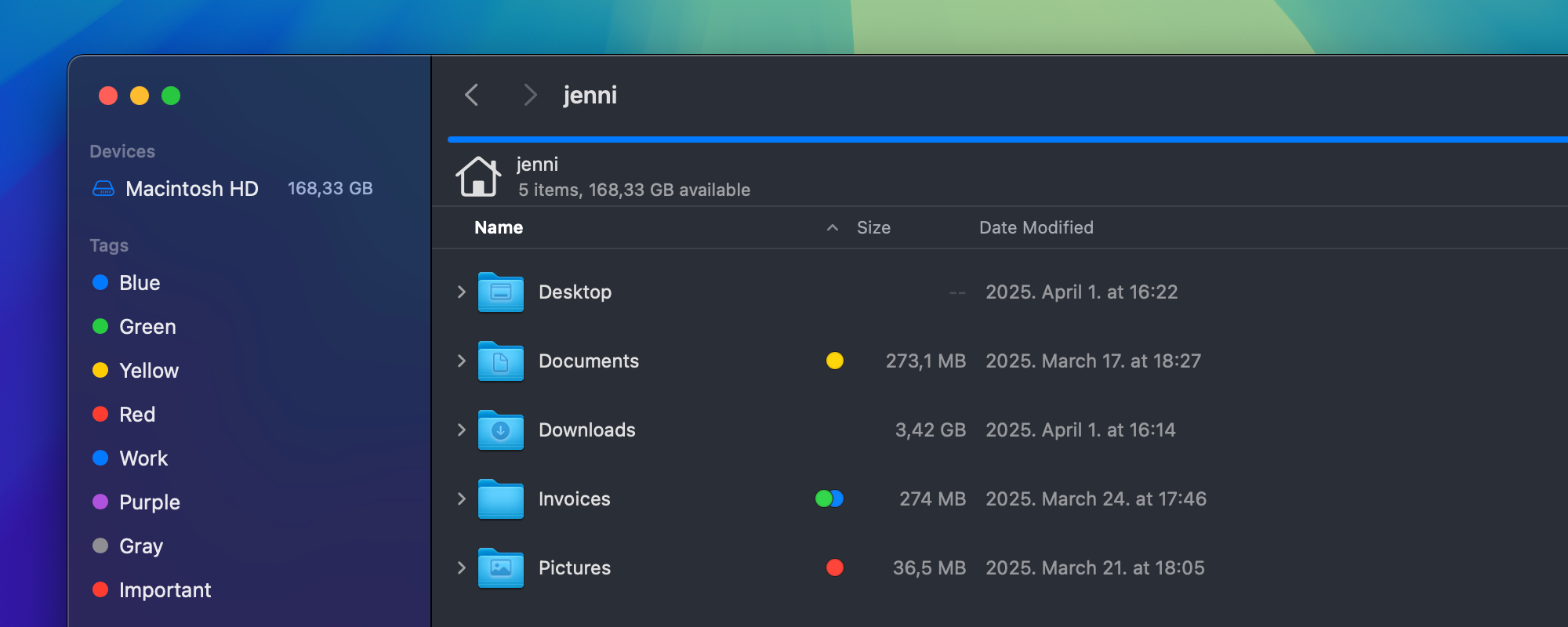
The biggest addition in ForkLift 4.3 is the new Tags favorite group in the sidebar. With this feature, clicking on a tag in the sidebar will instantly show all the files and folders on your Mac that are labeled with that tag.
By default, the Tags section displays the standard macOS color tags, but you can customize it to fit your needs.
Managing Your Sidebar Tags
To customize which tags appear in the sidebar:
- Open ForkLift > Settings > Tags
- Use the plus (+) button to add a new tag
- Select a tag and click the minus (-) button to remove it
If a tag has an assigned color in Finder, ForkLift will automatically detect and display it with the correct color.
Editing Tags in the Sidebar
For quick tag management:
- Right-click a tag in the sidebar and select Delete to delete it
- Right-click a tag in the sidebar and select Hide from Sidebar to hide it
- To show a hidden tag again, open the Sidebar Editor (View > Show Sidebar Editor) and check the tag’s box
You can also hide the entire Tags group by right-clicking its header and selecting Hide from Sidebar. To restore it, open the Sidebar Editor and put the check mark back.
Reordering Tags
You can drag and drop your tags to reorder them in both Settings and the Sidebar. However, tags must remain within the Tags group – they cannot be moved to other favorite groups.
Improvements and Bug Fixes
ForkLift 4.3 also includes numerous improvements and bug fixes. Most notably, we have enhanced the Tools section, ensuring that spaces in filenames and paths no longer cause issues. Additionally, we have improved the behavior of undo and redo actions.
Full list of changes:
New
- Tags favorite group in the Sidebar
- Option to set a big, 32-pixel icon size in List View
- Displays a tooltip in the Activities Pane to show the full info when hovering over the info line (bottom line)
- Displays Owner and Group information in the Info Window on SFTP (OpenSSH) connections
Improvement
- Modification date of the folder changes when dragging an item over the folder to add it without opening the folder
Fixes
- Fixes an issue where a space in the source or target path could prevent Tools from working correctly
- Fixes an issue where filenames containing spaces were not correctly passed as separate parameters to shell scripts in the Tools section
- Fixes a display issue of the activity while the process of duplicating an item was queued
- Fixes a possible crash when a quotation mark was entered into the Search field while doing a Spotlight search
- Fixes an issue that prevented connection to SFTP servers when the username was only set in the config file
- Fixes an issue that changed the modification date to the current date when an item was transferred to an external drive or a network share
- Fixes a visual Undo/Redo update issue on remote servers
- Fixes the Undo/Redo sound
- Fixes a history handling issue with Undo/Redo
- Fixes an issue on the Connect Panel where it was possible to insert a line break into the Password field
- Fixes a possible crash when dragging items over the Devices group header in the sidebar
- Fixes a compatibility issue with some S3-compatible services such as Tigris
- Numerous minor fixes and improvements
Now its the first time for me that this update is out of free update (license expired).
I tried to buy an upgrade/update license and saw that the price is the same 19,99$ although I’m eligible for upgrade – no bonus.
Is this correct??
Exactly the same for me :’-(
We don’t offer a monetary discount when you are upgrading, we offer an upgrade bonus, which is an additional 100 days of free updates on top of the time included in your license. If you are eligible for the upgrade bonus and enter your old license key in our store, the “Buy” buttons become “Upgrade” buttons. If you upgrade that way, the bonus automatically gets added to your license. After you register ForkLift with your new license key, you can check your update eligibility under ForkLift > About ForkLift.
We don’t offer a monetary discount when you are upgrading, we offer an upgrade bonus, which is an additional 100 days of free updates on top of the time included in your license. If you are eligible for the upgrade bonus and enter your old license key in our store, the “Buy” buttons become “Upgrade” buttons. If you upgrade that way, the bonus automatically gets added to your license. After you register ForkLift with your new license key, you can check your update eligibility under ForkLift > About ForkLift.
Ok. I accept this – but I think it would be a good idea to communicate it on the buying-screens that its transparent in the order process.
Not just chage the button text from “buy” to “upgrade” without mentioning the implications/bonus
Or I just haven’t seen it – then let me excuse myself
I was blind – sorry.
Now I ordered and saw the “100 additional days” mentioned
No worries! I’m glad you found the info. The details about the upgrade bonus are mentioned right above the text field where you enter your old license key, and they are also explained in our FAQ. I understand that it can be a bit confusing since many users expect a price reduction instead.
Tags favorite group in the sidebar:
“If a tag has an assigned color in Finder, ForkLift will automatically detect and display it with the correct color.”
This does not work for me. The only color that is detected correctly is Orange. All the other tags are just circles without color filling. Reassingning colors in Finder does not solve the problem (MacOS 15.4).
Could you please send us a screen recording of this issue? You can record your screen with Command-Shift-5. Send us the file or a link to the file at support [at] binarynights [dot] com
I have sent you the requested screen recording.
Thank you.
We were able to find and fix the issue. The new version will contain the fix but it will only solve this issue when the tags are generated for the first time. If the color tags had been generated automatically in a previous version, the the tags won’t be updated.
What you should do now to fix the problem: Delete the color tags from the Settings of ForkLift by selecting all of them that don’t have a color. Orange is the same in English and German, so it has a color, but if you use a different language, all colors could be affected. Delete the selected tags by pressing the minus button. Add the color tags in the language of the macOS, for example Blau, Rot, Grün, those tags should have the right colors.
Thank you!
It’s exactly the same for me. The only color that is detected correctly is Orange. All the other tags are just circles without color filling.
Which macOS version do you use?
We were able to find and fix the issue. The new version will contain the fix but it will only solve this issue when the tags are generated for the first time. If the color tags had been generated automatically in a previous version, the the tags won’t be updated.
What you should do now to fix the problem: Delete the color tags from the Settings of ForkLift by selecting all of them that don’t have a color. Orange is the same in English and German, so it has a color, but if you use a different language, all colors could be affected. Delete the selected tags by pressing the minus button. Add the color tags in the language of the macOS, for example Blau, Rot, Grün, those tags should have the right colors.
same for me.
Tags not working
Which macOS version?
macOS 15.4
Issue in addition:
Selecting any color tag in the sidebar don’t bring up any tagged document – although I’ve used Tags in Finder.
Finder itself works perfect.
Think I found the problem:
FL is looking at the “names” of the colors :-/
I renamed the colors in Finder in the past – e.g. the red I renamed to “contract” .
Now I tested to rename it back to the color name “contract” –> “Red” – and the issue is solved.
I would really like to see FL just reading the existing Tags from Finder …
Thank you for letting me know. ForkLift doesn’t look at the names but I believe you helped us to figure out the issue. We will look into it.
The issue is not the one that we have suspected. Could you please contact us an email?
We were able to find and fix the issue and you were right, it was connected to the English names but not the way you were suggesting it. The problem is that the tags are added in English to the sidebar, so the red tag is added as “Red” and not Rot or Rojo. To assign an actual color, ForkLift checks which color is assigned to that tag in Finder and adds the color to the tag in ForkLift as well. The problem is that if the red tag is called Rot in your language, then most likely, you don’t have a tag called Red, and ForkLift can’t assign a color to it because it doesn’t exist and doesn’t have a color. If you delete those tags and add the correct names, then the colors will show up.
The fix will be available in the next version and the color tags will be generated in the language of the macOS. That will only solve the problem when the tags are generated for the first time. If the color tags had been generated automatically in a previous version, the the tags won’t be updated because we don’t want to mess with the existing tags and overwrite them.
If the user deletes the color tags from the Settings of ForkLift which are in English and don’t have a color, and then adds the color tags in the language of the macOS, those tags should show up with the correct colors in the current version.
Understood your explanations. BUT:
What I did:
1- deleted all Tags from FL in settings
2- created in Finder a Tag, named it “Hausrat” with blue colour dot and assigned some files to this Tag
3- added to FL in settings a Tag with the name “Hausrat”. There it appears with a blue color.
4- checked in the sidebar under Tags: “Hausrat” appears w blue circle –> correct
5- selected this Tag in the sidebar to see the files having this Tag
6- the list is showing these files — BUT: with a gray dot (and not blue as it is in the sidebar)
Hopefully this is showing the issue I’m still seeing.
Do you use Sonoma? Are the tagged files located in the iCloud?
No. macOS 15.4 Sequoia.
Files are local.
Please contact us via email at support [at] binarynights [dot] com regarding this issue. This issue seems to be different from the other problem.
Done. eMail sent.
hi, i’m evaluating forklift. i like it and have some feature requests:
– double-click to go up one level: in a forklift window, double-click anywhere in the empty space of the file browser area to navigate up one directory. this is inspired by my favorite file browser on windows, explorer++, which you can try on windows to see what i mean. it’s a UX game changer.
– configurable ‘new tab’ behavior: it seems that when you open a new tab (cmd+t), it opens to the location of the tab you were just on? i would like this to be the ‘starting directory’ instead (settings > general > starting directory).
– actually eject volumes: not just unmount. at worst, can’t you call `diskutil eject` or something to do it?
what do you think? thanks
Thank you for testing ForkLift.
1. Double-clicking: This was available in one of the previous version but we have taken it out because it caused some unexpected issues, we might put it back and make it optional because a lot of users didn’t like that change in the behavior.
2. New tab: That is on our feature request list.
3. ForkLift should eject the disks, how do you see that it doesn’t and what type is that disk? (I don’t know if that makes a difference, but I could test it with the given type.)
Hello, with this version 4.3, in a “List” window containing several different files, whether for the internal disk or for a NAS device, when I scroll with the mouse, the icons of these files automatically redraw to return to their generic version!?…
But why do functions work from version to version of ForkLift, then no longer work!?…
Please send us a screen recording of this issue because we don’t see this problem and nobody has reported it so far. It would be important to see what is happening. Also send us a screenshot of the View Options Window (Command-J). You can record your screen with Command-Shift-5. Please record the entire ForkLift window. Send the recording or a link to the recording at support[at]binarynights[dot]com.
Hi, I just sent you an email with a screenshot and a little video… 😉
Thank you