BinaryNights Blog

ForkLift 4.2.4 is available

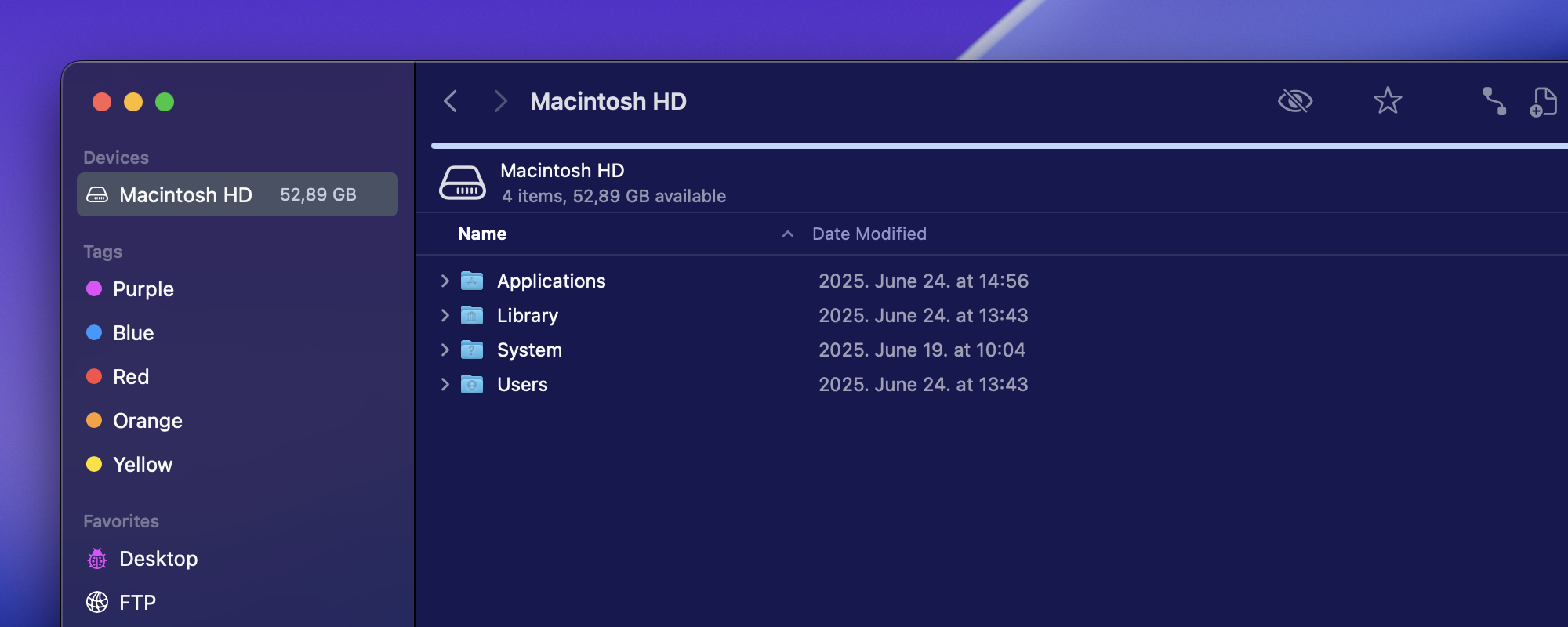
We are releasing ForkLift 4.2.4 as a quick update to improve your experience and address an issue introduced in version 4.2.3. This version resolves the lagging keyboard navigation and adds a handy new feature: the ability to hide all sidebar groups, including Recent Folders, with a simple right-click.

New

  • Adds the option to hide all remaining groups, including Recent Folders, from the sidebar through the right-click context menu

Fixes

  • Fixes the lagging keyboard file navigation issue introduced in version 4.2.3

Download ForkLift 4.2.4

ForkLift 4.2.3 is available – Explore New Sidebar Features and Enhanced Functionality

After version 4.2.1, we skipped version 4.2.2 because it was a Setapp-only release. Version 4.2.3 introduces several exciting new features, many of which are connected to enhancements in the sidebar.

Recent Folders in the Sidebar

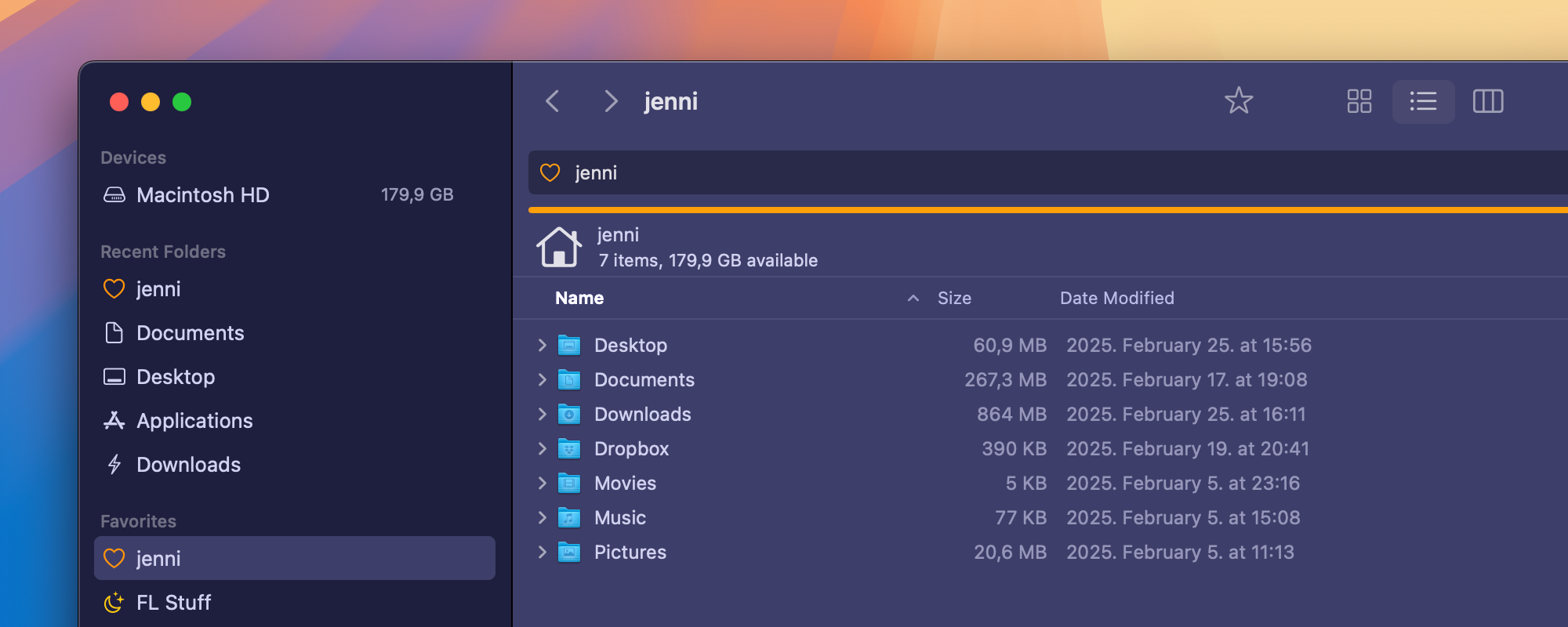
We have added a new group called “Recent Folders” to the sidebar. This group displays up to 10 recent locations and is data source dependent. This means that if you switch from your Mac to a server, the list of recent folders will update to show the history of the active data source.

The Recent Folders group is positioned below the Devices section in the sidebar for easy access. However, if you prefer a different location, you can move it by dragging and dropping the group title. To do this, ensure you drop it below the last item of another group and position the mouse pointer below the icons at the start of the sidebar items. ForkLift will indicate permissible drop locations with a blue circle and line.

If you don’t want to see the Recent Folders group in the sidebar, you can hide it. To do this, go to View > Show Sidebar Editor and uncheck the box next to Recent Folders. To exit the Sidebar Editor, select View > Hide Sidebar Editor from the menu. Even when hidden, you can still access the Recent Folders list via the menu: Go > Recent Folders.

Hiding the Connections Group

Using the Sidebar Editor, you can also hide the Connections group from the sidebar. If hidden, you can still access your connections through the menu: Go > Connections.

Editing Linked Files of Alias Files in the Preview Pane

We have added a new feature – which also resolves a bug – that allows you to edit the linked files of alias files directly in the Preview Pane. When you select an alias file, its preview appears in the Preview Pane and the Info Window. If the linked file is editable, you can now make changes directly to the original file by editing the preview of the alias file. Previously, editing the preview destroyed the alias file and failed to save changes to the original file. Now, your changes will be saved correctly when you click the Save button. However, the Save button currently does not disappear after saving; we are working on resolving this issue in a future update.

Updated Tab Icons

We have updated some of the icons displayed in tabs:

  • When you are inside a folder, a folder icon is shown instead of the document icon.
  • When connected to a remote location, the tab displays either the default protocol icon (e.g., a lock for an SFTP server) or a custom icon for that connection.

Bug Fixes

This update includes important bug fixes, including:

  • Fixes an issue that made it impossible to create a new connection to OneDrive, introduced in version 4.2.1
  • Fixes an issue that made it impossible to rename items in the root of OneDrive
  • Fixes several other minor issues to enhance overall stability and performance

Full List of Changes:

New

  • Option to edit the linked file of alias files inside the Preview Pane
  • Option to hide the “Connections” group from the sidebar, using the Sidebar Editor
  • New item called “Connections” in the Go menu, which shows the connected remote locations, even if the sidebar or the “Connections” group in the sidebar is hidden
  • New group called “Recent Folders” in the sidebar, which serves as a history and shows the last 10 locations on the active data source
  • New item called “Recent Folders” in the Go menu to display recent folders even if the sidebar or the “Recent Folders” group in the sidebar is hidden

Improvement

  • Displays the folder icon instead of the document icon in the tabs
  • Displays the default protocol icons or the favorite icons of remote connections in the tabs

Fixes

  • Fixes an issue, which made it impossible to rename items in the root of OneDrive
  • Fixes an issue, which made it impossible to create a new connection to OneDrive, introduced in version 4.2.1
  • Fixes an issue, which made it possible to open the About ForkLift window multiple times
  • Fixes an update error with a registered expired license key and the “Check for updates automatically” setting enabled
  • Fixes an issue, which made it impossible to open the Connect Panel in the Single Pane layout and remote connections locked to the right pane

Download ForkLift 4.2.3

ForkLift 4.2.1 is available – Hide Files Easily with One Click

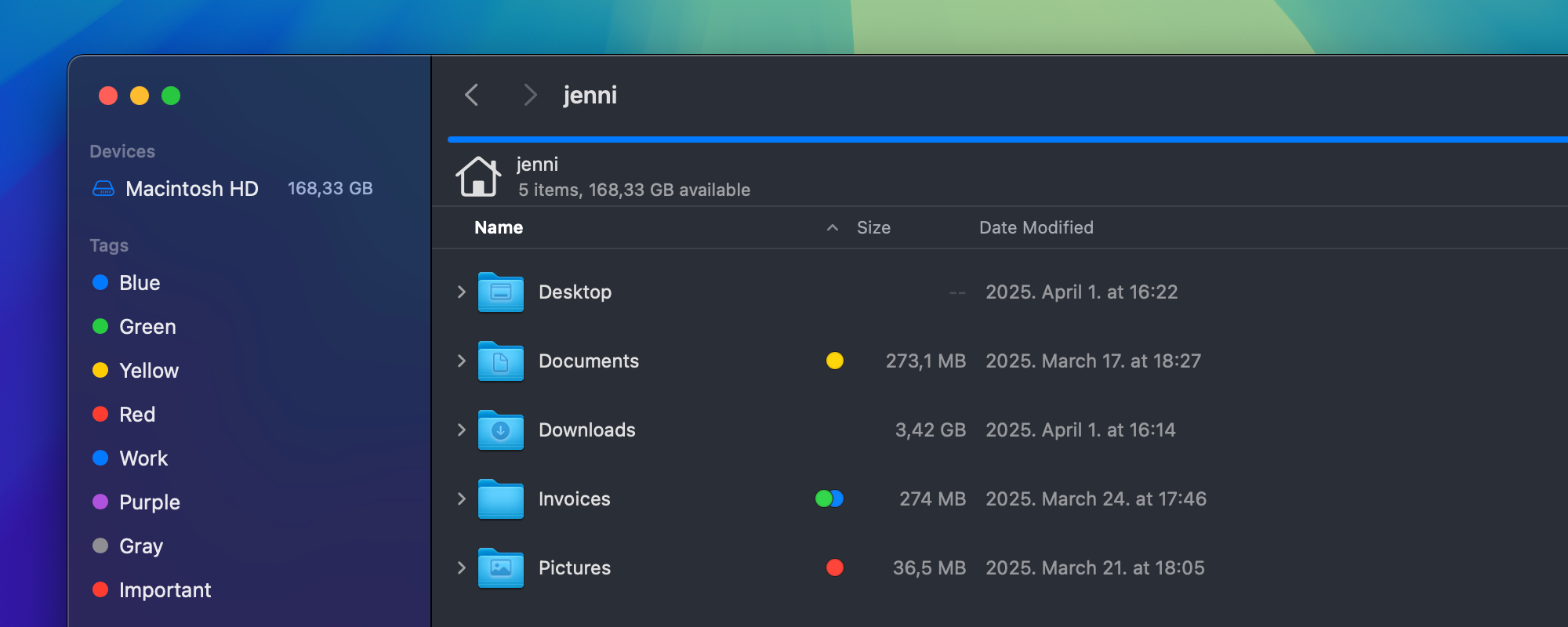
In version 4.2.1, we have added the option to display up to three color tags in both Column and Icon View. We have also fixed some minor issues that arose from allowing up to three color tags in List View.

A small but very handy new feature is the ability to hide files and folders without the need to rename them and add a dot in front of their names. Now, you can flag a file to make it invisible or make it visible again. To hide a file or folder, simply check the Hidden checkbox in the Preview Pane (Info Window). To make the item visible again, uncheck the box. Of course, you will need to display invisible items first, which you can do either from the Toolbar or by selecting View > Show Invisible Files from the menu.

The update also includes multiple fixes and improvements, especially related to tagging, alias and symlink files, Amazon S3 and OneDrive transfers, and batch renaming.

IMPORTANT: Since the multi-rename rules containing the date format pattern ‘Y’ have been updated, any multi-rename favorites using this pattern will need to be adjusted to function correctly after the update.

Here is the full changelog for ForkLift 4.2.1

New

  • Displays up to three color tags in Icon View
  • Displays up to three color tags in Column View on macOS 13 or later
  • Spring-loads folders in Icon View
  • Adds an option to hide items by checking the “Hidden” option in the Info Window
  • Shows file information of the linked item of alias and symlink files under “Original” in the Info Window

Improvements

  • When the “Restore windows and tabs on startup” setting is enabled, the Connect Panel and the Favorite Manager are no longer restored after restarting ForkLift
  • Folders are shown on top when grouping by kind, provided the “Show folders on top” setting is enabled
  • Displays a preview of the linked item when QuickLooking alias and symlink files
  • Improves retry handling for OneDrive transfers
  • Option to resize the ForkLift window to a smaller size

Fixes

  • Fixes a display issue with color tags when multiple tags have the same color
  • Fixes an issue with the old-style color labels, which was introduced in version 4.2
  • Fixes an issue where alias and symlink files were not grouped correctly according to their own tags when grouping by tags
  • Fixes an issue in the Multi-Rename window where changing the case of items resulted in conflicts
  • Fixes an issue in the Multi-Rename window where adding the year to names used the date format pattern ‘Y’ instead of ‘y,’ which have different meanings
  • Fixes an issue on Amazon S3 where the content type of large files (more than 5 GB) wasn’t set correctly after upload
  • Fixes an issue on Amazon S3 where the content type was always set to “application/octet-stream” when transferring items from another remote location to Amazon S3
  • Fixes an issue where dragging items over a tab did not activate the corresponding tab
  • Fixes an issue that made it impossible to display the SCM status in List View, introduced in version 4.2
  • Fixes small localization issues
  • Numerous minor fixes and improvements

Download ForkLift 4.2.1

ForkLift 4.2 is available – Display Up to Three Color Tags in List View

ForkLift 4.2 is available with numerous fixes, improvements, and two highly anticipated new features.

One of the standout new features is the ability to display up to three color tags in the List View. If an item has more than three color tags, only the most recent three are displayed, providing a clear and organized view of your tagged files.

Another major addition is the option to set a preferred pane for opening remote connections. This feature allows you to choose from three options under ForkLift > Settings > General > Open remote connections in: Active Pane, Right Pane, or Left Pane. By default, remote connections open in the Active Pane, maintaining ForkLift’s previous behavior. However, many users have requested the ability to lock remote connections to a specific side, such as the right pane, to reduce the risk of user errors.

If you lock remote connections to the Right Pane or Left Pane, remote favorites and the Connect Panel will always open in the chosen pane. After the Connect Panel opens and you connect, the connection will open in the same locked pane where the Connect Panel was displayed. For users with a horizontal layout, the Left Pane corresponds to the top pane, and the Right Pane corresponds to the bottom pane.

For example, selecting Right Pane in the settings ensures that saved remote favorites and the Connect Panel always open on the right side, regardless of which pane is currently active. If you need to open a connection in the opposite pane, you can simply drag the tab to the other side or use the View > Swap Panes command for a quick switch.

Here is the full list of what is new, improved, and fixed in ForkLift 4.2

New

  • Display up to three color tags in the file view in List View
  • Option to set a preferred side in Settings for opening remote connections
  • Display Owner and Group information in the Info Window on SFTP connections
  • Option to rearrange the order of devices in the sidebar using drag and drop

Improvements

  • The preview on a remote connection can now be updated by refreshing the file view
  • Reorganized the order of context menu items of favorites in the sidebar
  • Enhanced Icon View to fix several issues, including rendering and refresh problems, jumping selection after renaming, and flashing selection

Fixes

  • Fixes an issue that made ForkLift unresponsive during actions, especially synchronization with elevated privileges (when the helper tool requested a password)
  • Fixes an issue where the favorite path wasn’t saved when added from the path bar
  • Fixes an issue with permissions in the Info Window, where it was impossible to update the Octal
  • Fixes an issue where the Favorite Manager or Connect Panel, when left open before restarting the app, caused the tab it reopened in to not have a title
  • Fixes an issue where ForkLift didn’t restore the correct order of columns in List View when the “Always resize name column” setting was enabled
  • Fixes an issue in Column View where, with the “Restore windows and tabs on startup” setting disabled, the previous locations were reopened instead of the starting directory
  • Fixes an issue where the Actions toolbar button did not function correctly in certain rare situations
  • Numerous minor fixes and improvements

Download ForkLift 4.2

ForkLift 4.1.8: Seamless Dropbox Connection Restored with Support for Dropbox Teams

We are pleased to share that ForkLift 4.1.8 restores direct connection to Dropbox

With this update, you can reconnect seamlessly to Dropbox. However, earlier versions of ForkLift can no longer connect to Dropbox. Please ensure you update to version 4.1.8 or later to continue using Dropbox.

When you connect to Dropbox in this new version, you will need to authenticate again. If you previously saved Dropbox favorites in ForkLift, they will no longer work, and you will need to recreate them.

To delete your old favorites, simply right-click them in the sidebar and select Delete.

To create a new favorite:

  1. Open the Connect Panel by pressing Command-K or through the menu (Go > Connect)
  2. Select Dropbox as the protocol, and click the “Add to Favorites” button.
  3. Open your browser, click the “Allow” button to let ForkLift access your Dropbox files.
  4. Choose “Allow” or “Always allow” to return to ForkLift.
  5. Back in ForkLift, name your favorite and click the “Add” Button.
  6. If you want to connect to your Dropbox account, then click “Connect” – or click “Cancel” to close the Connect Panel.

Support for Dropbox Team accounts

In this version, we have also added support for Dropbox Teams. So if you are a member of a team – or even multiple teams – you will be able to access and manage both your personal and team accounts directly from ForkLift.

Here are the release notes for ForkLift version 4.1.8:

New

  • Dropbox Teams support
  • Ability to select and compare two items in the same pane
  • Option to eject shares via the right-click context menu in the sidebar
  • Option to disconnect from connections via the right-click context menu in the sidebar
  • Option to delete favorite groups from the sidebar
  • Ability to assign keyboard shortcuts to color tags in Settings
  • New option to copy the path of items (called “Terminal”), which copies the path in a format that can be used directly in the Terminal
  • “Reveal in Favorite Manager” context menu item for favorites and favorite groups in the sidebar
  • Warning before upgrading to a new version when your license only allows trial mode

Improvements

  • Enhanced display of undo and redo activities in the log

Fixes

  • Fixes an issue that made it impossible to connect to Dropbox
  • Fixes an issue where, in some cases, after switching the macOS Appearance, the theme didn’t update in all open tabs
  • Fixes an issue introduced in version 4.1.7 that made it impossible to drag and drop from some third-party apps into ForkLift
  • Fixes an issue during multi-renaming where, in certain cases, no conflict window appeared during a conflict, potentially leading to data loss
  • Fixes an update issue in the Tools section on macOS Sequoia
  • Focus now jumps to the correct items after certain actions, such as creating an archive or duplicating items
  • Fixes an issue with workspaces saved in full-screen mode
  • Fixes an issue that deleted the custom server address of Amazon S3 favorites, preventing users from editing the server field
  • Fixes an issue when switching between column view and other views where the path depth wasn’t maintained correctly
  • Fixes an issue in rename mode when the Delete key was assigned as the keyboard shortcut for deleting items
  • Fixes an issue in the Permissions section of the Info Window where it wasn’t possible to change the octal values of items
  • Fixes an issue in the Permissions section of the Info Window where, in some cases, permissions weren’t updated correctly for all subitems after clicking “Apply to Enclosed Items”
  • Numerous minor fixes and improvements

Download ForkLift 4.1.8

ForkLift 4.1.7 is available

ForkLift 4.1.7 is compatible with macOS Sequoia (macOS 15)

New

  • Tools are available in the context menu of items
  • Option to change the text size in List View with the Command-Plus and Command-Minus keyboard shortcuts

Improvements

  • Improves how locations already open in one of the ForkLift windows are activated when opened by third-party applications, or through a drag and drop action over the ForkLift icon
  • Placeholders on the Connect Panel for the Backblaze B2 protocol
  • Sizes of items are visible in the App Deleter window
  • Displays a warning when quitting ForkLift or a ForkLift window with ongoing activities
  • Displays more items under More Info in the Info Window
  • Option to connect to WebDAV without the need to enter a username

Fixes

  • Fixes an issue causing files to be incorrectly grouped when Group by date was enabled, due to a time zone mismatch
  • Fixes an issue, which made it impossible to edit Symlinks on remote connections
  • Fixes an issue where the app did not reopen in full screen mode
  • Fixes an issue, which reopened the sidebar and the preview pane in certain situations
  • Fixes several issues with the Reveal in Finder and Open in Finder commands, when ForkLift was the default file viewer and minimized to the Dock
  • Fixes an issue, which displayed the Compress toolbar button as inactive on Apple Silicon Macs
  • Fixes multiple issues on macOS Sequoia (macOS 15), when moving tabs or dragging items over the tabs in the tab bar
  • Fixes a display issue in the Editing tab of the Settings of ForkLift
  • Fixes a possible crash with certain FTP servers that require TLS session reuse
  • Fixes an issue, which allowed saving an empty tool, where running the empty tool could cause a crash
  • Fixes an FTP compatibility issue with certain servers, where permissions were displayed incorrectly
  • Fixes issues while saving a favorite, where the pop-up to add a favorite didn’t disappear or an error sound was played
  • Numerous minor fixes and improvements

Download ForkLift 4.1.7

ForkLift 4.1.6 is available

New

  • Chinese localization
  • Dragging a local or remote item over an app in the sidebar opens the dragged item in the selected app
  • More available path formats when copying the path of items

Improvements

  • Improved handling of Title Case in the multi-rename window
  • ForkLift now asks for confirmation when an item is dragged over a favorite in the sidebar, if the relevant setting is enabled
  • Option to compress multiple archives

Fixes

  • Fixes several localization issues
  • Fixes a sound effect when saving a multi-rename favorite
  • Fixes an issue where the Action toolbar and menu items were sometimes empty
  • Fixes an issue where the search field could not be opened with the Command-F keyboard shortcut in certain cases
  • Fixes an issue where the Compress menu item was disabled, but the text still referenced a previous selection
  • Numerous minor fixes and improvements

Download ForkLift 4.1.6

ForkLift 4.1.5 is available

New

  • Items inside the Multi-Rename Window can now be manually reorganized by drag and drop
  • Local move operations are no longer queued

Fixes

  • Fixes a potential crash when clicking the Synchronize button in the Sync window, an issue introduced in version 4.1.4
  • Fixes an issue on macOS Sequoia Beta that made it impossible to close tabs

Download ForkLift 4.1.5

ForkLift 4.1.4 is available

New

  • Japanese localization

Improvements

  • When ForkLift is the default file viewer, already open locations don’t open in a new tab but the already open tab gets activated if it is open in the main ForkLift window

Fixes

  • Icon preview of items inside archives in Icon View is now available
  • Fixes some localization issues

Download ForkLift 4.1.4