 Binarynights

Keyboard Shortcuts in Quick Open and Improved Layout Memory
One of ForkLift’s most powerful yet underrated features is the Quick Open window, a true time-saver that many users still don’t take full advantage of. With Quick Open, you can instantly access favorites and execute menu commands without having to dig through menus.
To use it, simply press the Esc key to open the Quick Open window, then start typing the name of the favorite or command you want to use. For example, typing “Downloads” will show options like Open Favorite > Downloads or Execute Command > Downloads, which corresponds to the Go > Downloads menu command. Use the arrow keys to navigate the list and press Enter to activate the selected item. It is especially helpful if you are unsure where a command is located or don’t know its shortcut.
Starting with version 4.3.3, Quick Open now displays the keyboard shortcuts next to each result, making it easier to learn and remember them as you work. For many commands, you can even press the shortcut directly while the Quick Open window is active, unless the shortcut also works inside a text field, in which case the text field action takes priority. Give Quick Open a try to make your workflow faster and more efficient, you might be surprised how much time it can save you.
Another improvements to your workflow:
ForkLift now remembers and reopens the content of the second pane when switching between One Pane and Two Pane Layouts. This means fewer disruptions and a smoother experience when adapting the interface to your needs. (This behavior was introduced in 4.3.1 but we forgot to mention it back then.)
The Activity Window now displays the number of items being synchronized. Whether you are syncing dozens or thousands of files, you will now have a clearer picture of what is happening in real time.
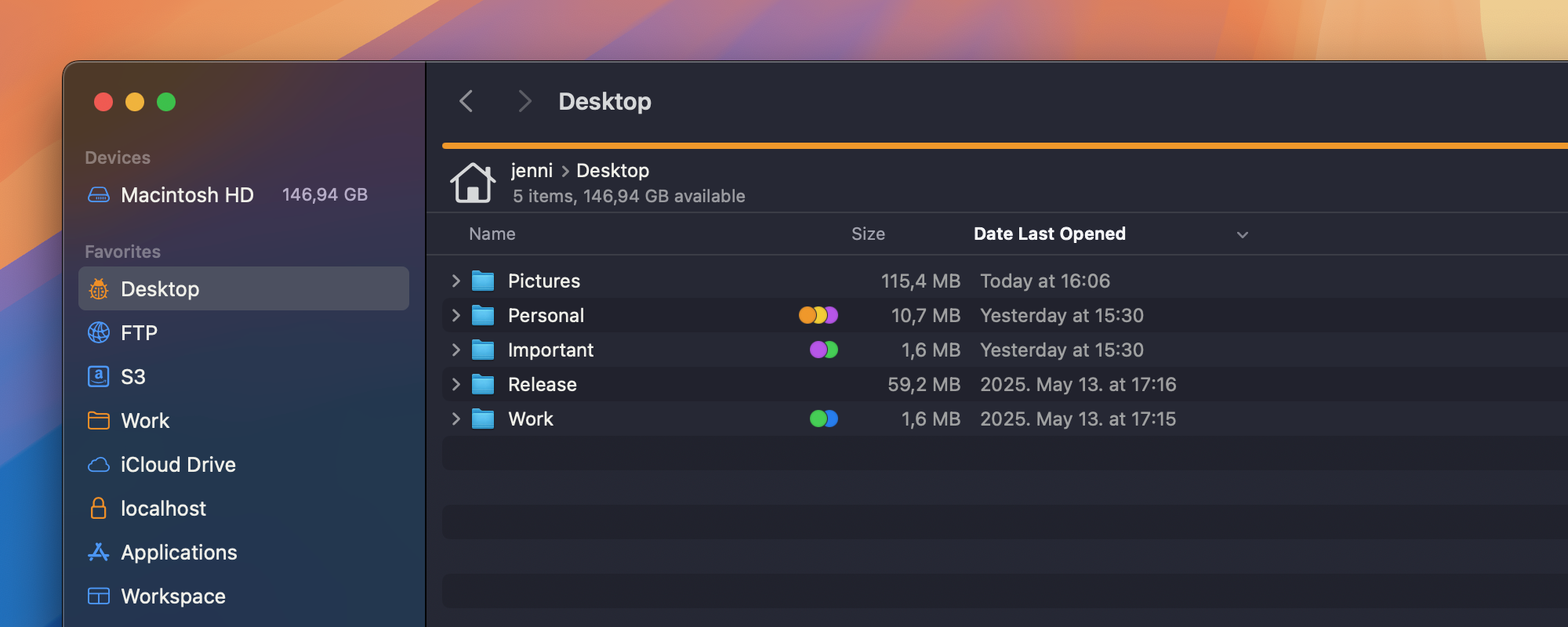
You can now add a “Date Last Opened” column to the List View, making it easier to identify recently used files at a glance.
Subtle Improvements
We have made some refinements to make your experience even more intuitive. ForkLift now ignores quotation marks in path entries in the “Go to Folder” window, the Esc key can close the “Copy to as” pop-up, and hidden files are easier to recognize in Icon View thanks to a lighter color tone.
Resolving Bugs
This release also includes a variety of fixes, from improving QuickLook behavior and Preview Pane reliability, to resolving some SFTP session issues and localization inconsistencies. We have also refined how ForkLift handles files with identical names but different letter casing during copy operations.
Full list of changes:
New
- Displays the keyboard shortcuts of the commands in the Quick Open window
- Displays the number of items in the Activity Window(s) during synchronization
- ForkLift now remembers and reopens the content of the second pane when switching between the One Pane and Two Pane Layouts (Introduced in version 4.3.1)
- Adds the option to add Date Last Opened column to the file view in List View
Improvement
- ForkLift ignores the single quotation marks of the paths in the Go to Folder window when they appear at both the beginning and at the end of a path
- It is possible to exit the “Copy to as” rename pop-up with the Esc key
- Hidden files are shown with a lighter color in Icon View, which makes them easier to differentiate
Fixes
- Removes the Assign Tag command from the list of commands in the Quick Open window when no item is selected
- Removes the tag favorites from the list of commands in the Quick Open window because they linked to the root folder
- Fixes an issue in the Preview Pane where the preview of the selected item got lost after the view inside the Preview Pane was changed to the Log or the Activities and then back to the Preview
- Fixes an issue that made it impossible to QuickLook an item after it has been renamed
- Fixes an issue that made it possible to accidentally delete the selected items in the background with the Command-Delete keyboard shortcut while the Quick Open or the Go to Folder window was activated
- Fixes in the French localization
- Fixes an issue where the session wasn’t correctly closed after disconnecting on SFTP connections
- Fixes an issue where it was possible to select the Show Original, Show Package Contents, and Show Archives Contents commands when multiple items were selected, which then didn’t run correctly
- Fixes an issue where if the content of a bundle was cloned, the content of the bundle was opened in an application instead of actually cloning the file view inside ForkLift
- Fixes an issue where it was possible to select the Calculate Folder Size command from the menu when only files were selected
- Fixes an issue where the file name did not change during local copy operations when a file was replaced by another file with the same name but with uppercase and lowercase letters used differently
- Numerous minor fixes and improvements
Hi there,
I have a feature request:
It would be great to have the ability to sync (iCloud) custom themes, or at least an option to export and import them.
Thanks in advance!
Best regards,
Unfortunately, syncing the settings isn’t possible but you can manually copy the plist file, which contains the preferences from one Mac to another.
The preferences are stored in this file:
~/Library/Preferences/com.binarynights.ForkLift.plist
You can find that file easily if you select Go > Go to Folder from the ForkLift menu and paste the path and press Enter.
Copy that file from one Mac to the other to the same location. That will overwrite your existing preferences, so you might want to consider if that is something that you want to do.
After replacing the plist file, open ForkLift, if it doesn’t have the settings from your other Mac, for example the themes aren’t the same, then open the Activity Monitor app and search for this process: cfprefsd
Stop each of them that belong to your user. You can stop the process by selecting it and clicking the X button in the toolbar.
The problems I had been experiencing have been resolved, thank you!
It would be interesting to be able to integrate a custom terminal emulator (I use Tabby) as if it were among those supported by default (Terminal, Iterm2, Kitty, etc..) instead of as an external “tool”.
The same improvement could also be added for comparison tools (I use Meld).
I’m glad to hear that the problem you were experiencing, has been resolved.
Adding Tabby as a Terminal is on our feature request list and we will consider adding it. I have checked out Meld and it is stated on their site that Meld is not yet supported on macOS, only semi-official builds are available. I have added Meld to our feature request list, but at this point, I don’t think that we will add it. If the demand for it raises, then we will consider it.
Hello, I’ve recently returned to Forklift with this release and it feels good during use.
There are still 3 feature requests that would improve my workflows:
1)
a stash/shelf as per Path Finder and QSpace for file transfers; 2) option to place the status bar as a one-liner at the bottom, without the large icon that ultimately wastes vertical space;
3) if I highlight a folder, creating a new folder would then
place it inside the selected folder, not in the current directory level of the tab (because it lands at the bottom and I have to scroll down to get it and drag it into my target folder.
Thanks for providing a wonderful piece of software!
I’m glad to hear that you are using ForkLift again. All of these features are on our feature request list but I don’t know if and when they will get implemented. One change in the next version, which is somewhat related to your third feature, will be that if you select a folder and choose Paste from its context menu, then the copied item will be pasted inside that folder. That won’t happen with the Paste command from the menu.
If you have a list of files to copy in the queue and there are so many files that you have to scroll in the pop-up list, you cannot reach the last entry. It is outside the screen.
Thank you for reporting. We will try to fix that.
#1. Please add a Path column. This is the main feature I need.
#2. Please add Comments column. This is a basic feature in Finder.
#3. for Tag settings, show me all tags so I don’t have to go back to the main Finder to get a list of All Tags and type them in, individually.
#4. Business advice: in my research comparing Finder replacements, I notice a lot of people want to know who the people are developing these apps. You could differentiate yourself by being more public / less anonymous.
#5. The YouTube channel is 6 years stale. More frequent updates will help. You can have AI workflows automatically convert your changelogs to videos now.
1.+2. are on our feature request list
3. There is no API to work with the tags like that. We tried to create our own list and display those in a drop-down but it didn’t look good, so we have dropped that idea for now.
Thank you for your other ideas. We definitely want to create some videos.
The 4.3.x versions are buggy and crashing randomly in M4 Pro CPU. I downgraded to 4.2.9 and it works
Please send us the crash report directly at support [at] binarynights [dot] com