 Binarynights

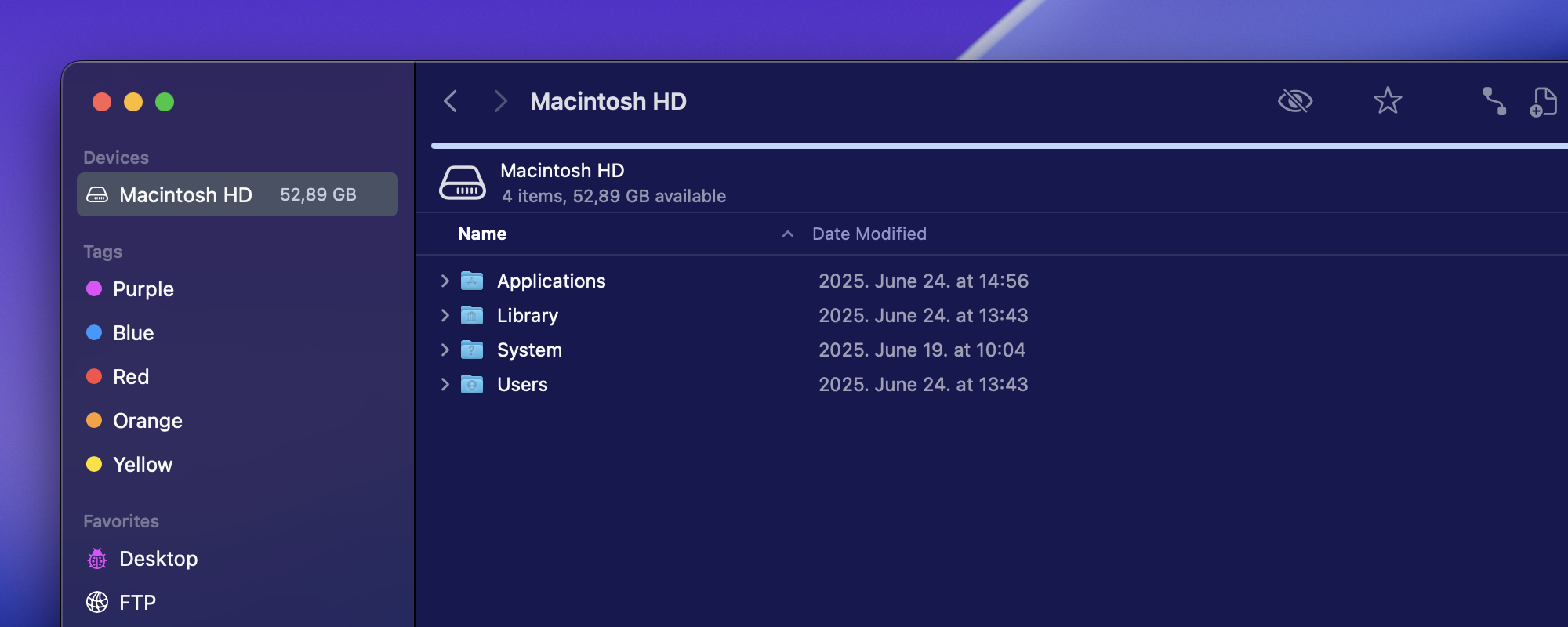
ForkLift is now compatible with macOS Tahoe 26
Improved stability and support for macOS Tahoe 26
ForkLift 4.3.4 includes several important fixes and improvements related to macOS Tahoe 26. Unfortunately, version 4.3.3 frequently crashed on the macOS Tahoe 26 Beta, so users have not had much opportunity to test ForkLift on the upcoming macOS. We hope these fixes make ForkLift stable on Tahoe, and allow users to provide more feedback about any remaining issues.
This update also includes a number of GUI improvements, some of which will be visible only on macOS Tahoe. However, the app was built on macOS Sequoia to avoid potential issues caused by the beta environment. This means that some of the visual changes designed for macOS Tahoe may not yet appear in the current release.
If you are using ForkLift on the latest beta of macOS Tahoe, we would love to hear how it performs, please share your feedback with us.
Better Navigation, Smarter Pasting, and a Smoother Experience
In addition to these compatibility fixes, version 4.3.4 brings many improvements to the Logs section in the Preview Pane and a range of small but useful GUI fixes. One of the more noticeable changes is the improved navigation using the Back and Forward buttons, you can now move back and forth smoothly without unexpected behavior.
Another functional improvement: when using the Paste command from a folder’s context menu, pasted items are now correctly placed inside the selected folder, rather than beside it as before.
Full list of changes:
New
- Adds the date of the activities to the Logs
- Adds the number of renamed items to the Logs
- Adds an option to copy text from the Logs, such as the path of failed items
Improvement
- Shows the old and new name of an item in the Logs after it has been renamed
- Transfers pasted items into the selected folder when the Paste command is selected from the folder’s right-click context menu
- Applies small GUI enhancements in several windows and views, such as the Multi-Rename window and View Options
Fixes
- Fixes possible crashes on macOS Tahoe 26
- Fixes multiple compatibility issues with macOS Tahoe 26
- Fixes the incorrect size of the Activity toolbar button
- Fixes a GUI issue in the Activities pop-up
- Fixes an issue in the Activities pane where some icons appeared squeezed
- Fixes incorrect verb tenses in the Logs
- Fixes an issue in the Logs where failed rename activities were displayed as successful
- Fixes an issue that made the Open with command active in the menu even when no item was selected
- Fixes an issue that made the Synchronize button in the Sync Window active even when no items to sync were available
- Fixes issues with navigation using the Back and Forward buttons, where after navigating back several steps, moving forward again wasn’t possible
- Fixes an issue with conflicting items that don’t have modification dates, which are now skipped when the Replace Older option is selected
- Fixes an issue where pickers were selected when switching between text fields with the Tab key in the Multi-Rename Window
- Numerous minor fixes and improvements
Are you planning to add “tabby” (https://tabby.sh/) to the list displayed under “Settings” -> ‘General’ -> “Terminal Applications”?
That is already on our feature request list. We will look into the possibility of adding more terminal applications in the future.
Is there a way to disable to icons in the menus?
It is not possible to disable the icons in the menu. As far as I have seen, people either love or hate this new feature, so I believe, some users would love to disable the icons. However, adding the icons is part of the new Human Interface Guidelines that Apple updates from time to time. Since we are following those guidelines, most likely we won’t allow users to disable the icons.
It looks so weird and confusing to me. So far I’m very worried about the this “liquid glass” design, it looks just weird.
Btw. menu entrys without should also be formated like they have icons. It will make menus so confusing and unusable 🙁
I totally get that, these kinds of design changes often feel strange at first. But I believe we will get used to the new look over time. We are going with the flow, as this is the direction things are heading. As for the menus: they are automatically formatted that way, even for entries without icons.
Request:
It would be very useful if in the copy file progress bar if it were to show what drive the file is coming from and going to.
i.e. Drive: A “File 1” Copying to Drive B
I have so many drives connected and I work with large files that take a LONG time to copy sometimes when I come back to monitor progress I’ve forgotten what was going to what. Especially when I have 2 windows open with a split plane on both and drag a file across from one to the other (and when each pane has a different drive) its not obvious just from seeing that up and down arrow icon what’s really going on .
Thanks for reading.
Thank you for the idea. This would be a useful addition. We will try to add more info in the activities.