 Binarynights

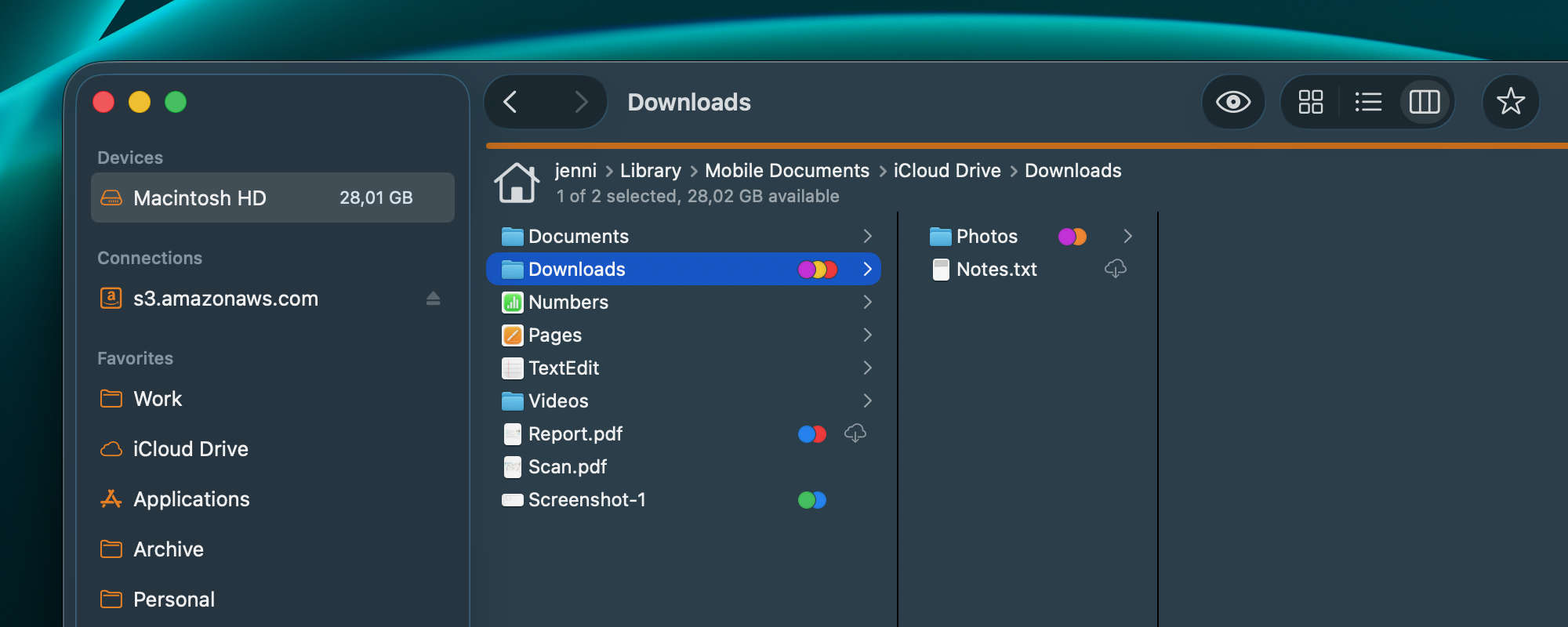
Faster Performance, Smarter Column View and iCloud Indicators
The latest ForkLift release brings performance improvements, better visuals, and enhanced stability.
Performance and Stability
- Recent Folders in the Sidebar now update more efficiently, preventing the hangs that could occur during updates.
- Fixed a crash in Column View on macOS Tahoe 26.
Smarter Column View
Column View now displays iCloud status icons for files stored in iCloud Drive and on other platforms using Apple’s File Provider. These indicators are now consistent across all three views, so you always know which files are stored locally and which are in the cloud. Clicking the icons won’t download files, you can download them via the context menu or in the Preview Pane.
Visual and UI Enhancements
- Redesigned Settings window to align with the look and feel of macOS Tahoe 26.
- Better visualization of spring-loading folders in Icon View.
- Menu icons are now only shown on macOS Tahoe 26.
Full List of changes:
New
- ForkLift now requires macOS Sonoma (macOS 14.6)
- Adds a cloud icon in Column View to indicate files in iCloud Drive that are not downloaded
Improvements
- Removes the icons from the menus on macOS versions before macOS Tahoe 26 where that setting is not a system-wide design
- Changes undo/redo activity logging for the Move to Trash command
- Better visualization of spring-loading folders in Icon View
- Recent Folders in the Sidebar now update more efficiently to avoid potential freezes
- Redesign of the Settings window to better align with the new design of macOS Tahoe 26
- Various macOS Tahoe 26 improvements
Fixes
- Fixes a crash in Column View on macOS Tahoe 26
- Fixes a text wrapping issue in the Sidebar on macOS Tahoe 26
- Numerous minor fixes and improvements
And yet, still can’t select with the space key…
And yet, you still can’t grasp reality…
Dear Developer Team,
thank you for the deeper integration of tags in Forklift. However, in some cases I’m still forced to use the native Finder when working with tags. For example, when I right-click a file in Finder and want to add tags, I get a complete list of all my tags. While typing, the list dynamically narrows down to tags starting with the letters I’ve entered, so I can easily pick from that list.
In Forklift, as far as I can see, there is currently no such option to select existing tags. If I mistype a tag, I accidentally create a new one instead. Are there any plans to make tagging in Forklift more Finder-like, with an auto-suggest or dropdown feature for existing tags?
Greetings
René
Unfortunately, macOS doesn’t provide an API that allows third-party apps to access the system’s full tag database in the same interactive way Finder does. This means we can’t show a complete list of existing tags or dynamically suggest them as you type, nor can we apply tag colors like Finder. (Some apps work around the later with unsupported hacks, but these often lead to unreliable behavior, so we avoid that approach.)
We did consider creating our own tag database based on the tags you can add in ForkLift’s Settings but we decided against it at the time because the implementation options were not very elegant. However, now that ForkLift requires a newer macOS version and we can use more modern system capabilities, we will revisit this idea to see if we can offer a better solution in the future.
I’m reporting a minor issue with ForkLift version 4.4.
I usually display local folders in the left pane and favorites in the right pane when I use ForkLift 4.
However, if “Restore windows and tabs on startup” is enabled and I restart ForkLift 4, the display in the right pane displays incorrectly.
But switching to a different folder and then back to favorites restores the display.
This issue did not occur in previous versions, so I would appreciate it if you could fix it.
This is a known issue in version 4.4 and we have already fixed it. The fix will be available in the next version. We are sorry for the problem.
I’m relieved to know the issue has already been fixed. Thank you.