 Binarynights

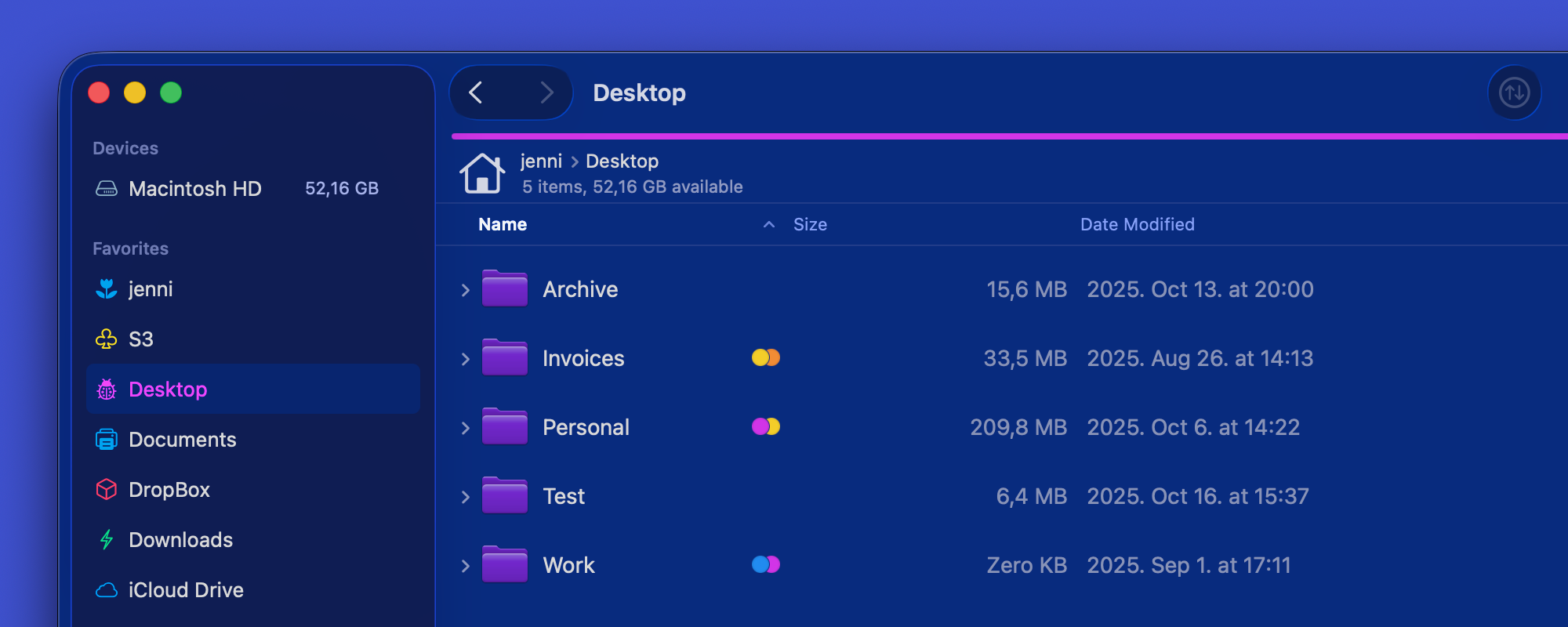
New Sidebar Selection Style and macOS Tahoe Fixes
This version introduces the new macOS Tahoe selection style in the sidebar, which changes the text color of the selected item. If a sidebar icon has a color because it is a color tag or a favorite with a custom color, the name of the favorite now inherits that color when the item is selected. Items without a color are selected using the system accent color of macOS, which is blue by default. This feature is available only in the Light, Dark, and Default themes.
In this version, we have removed the AppMover feature because it was never able to work properly.
Most of the fixes in this update address issues related to the transition to macOS Tahoe. Among the most reported problems now resolved are the tab-reordering issue in the user interface, and column view bugs where column widths were not restored after restarting ForkLift, and long file names were truncated even when the “Resize Columns to Fit” option was enabled.
Full List of changes:
New
- New sidebar selection style on all macOS versions that matches the macOS Tahoe selection style, which is available only in the Light, Dark, and Default themes
Fixes
- Removes the AppMover feature that should have moved ForkLift to the Applications folder when launched from a different location
- Removes remaining icons from the menu on older macOS versions
- Fixes the issue where column widths were not correctly restored in Column View after restarting
- Fixes an issue with the Resize Columns to Fit feature where columns were not wide enough to display long file names
- Fixes a possible crash on macOS Tahoe when connecting to Backblaze with an incorrect password
- Fixes a possible crash on older macOS versions when connecting to Backblaze with an incorrect password on the third attempt
- Fixes a visual issue when reorganizing tabs in the tab bar
- Fixes the Activities toolbar button on macOS Tahoe that was too small
- Fixes the issue where no completion sound was played after successful transfers to remote locations
- Fixes the misplaced icons above the Preview Pane when ForkLift was launched without a toolbar
- Numerous minor fixes and improvements
I have the “delete” icon and “copy to” icons on the toolbar.
When I select av file/folder the icons stay gray until I click on them. So I need to do two clicks to do those actions. This was not the behavior earlier. I´m on macOS26.
Unfortunately, that is a macOS Tahoe bug, which is also available in other apps including Finder. Please try to report this to Apple.
Well look at that, just tried and you’re correct. Hadn’t noticed earlier since I use Finder very sparsly.
Well then, I’ll go and bug Apple instead.
Thansk
Themes are broken in several ways:
1. Folder highlight (inactive) is always grey with white text
2. Folder highlight (active) is always blue with white text
3. in Tahoe, Folders do not show the folder customization settings (such as color and emoji)
Other Issues:
4. Comments column feature from Finder is missing and the ability to add a comment is missing from ForkLift’s GetInfo. You can greatly improve upon the Comments feature in Forklift by making the addition of a comment as easy as renaming or tagging. Currently, it is too many clicks to add a comment in Finder (and it is not possible at all in FL).
5. How can I add a saved search from Finder Favorites to Forklift Favorites?
6. App seems very laggy since Tahoe install but
1+2. The selection color can’t be set when you create a custom theme, its color depends on the System Settings, the selection is blue by default and the inactive selection is grey. So I don’t think that there is an issue with that behavior. (The Selection color that you can set when you create a custom theme is a different selection color.)
You can set the text color when you are creating a custom theme but that is the text color of a not selected item, when an item is selected, its color changes to white. However, I can see some inconsistencies with the text color of selected items in the inactive pane because in list view the color turns back to the custom color but in column and icon view it remains white. Since the color of the selected items turn back to their original color in the default themes, I believe that that should be the expected behavior with the custom themes as well. I have added this to our bug tracker.
3. Issues with emojis and colors of folders: We don’t receive that info from macOS, so we can’t display them. I don’t know if this is some bug in macOS that will get fixed or not. We would like to display those things as well.
4. Managing the comments the same way as in Finder is not possible in ForkLift, that is already on our feature request list.
5. Here is how you can create a saved search and access it in ForkLift, if the saved search is already created, then you only need the steps starting from step 8:
1. Right-click the Finder icon in the Dock, then select New Smart Folder.
2. Press the plus (+) button next to the Save button in the top right part of the window to add search rules.
3. From the drop-down menu, select the search attribute you want to use. If it is not in the list, select Other, and then choose it from the extended list.
4. Set up your search criteria using the other menus and fields as needed.
5. Select This Mac.
6. Click Save — Finder automatically wants to save the smart folder into the Saved Searches folder, don’t change that location.
7. Name your smart folder and save it.
8. In ForkLift, select Go > Go to Folder from the menu or use the Command–Shift–G keyboard shortcut to open the Go to Folder window.
9. Paste the following path into the window and press Enter: ~/Library/Saved Searches
10. Select the smart folder you created and drag it over the sidebar of ForkLift to the location where you want to place it.
6. You didn’t finish your sentence. If ForkLift is beach balling, then take a sample and send it to us. Open Activity Monitor, select ForkLift and choose Sample Process from the View menu, or click the Three Dots icon in the toolbar and choose Sample Process. Save it as a text file and send it to us. You should take the sample while ForkLift is not responding.
How to show date format “hh’:’mm’:’ss’?
Thanks.
The date format in ForkLift follows the system settings. However, there are 4 different date lengths and depending on the date column widths in ForkLift, you see different formats. If you make the columns wider or narrower, you will see different date formats.
It was possible to change the formats in the System Settings before but that is not possible any longer. You can change the settings from the Terminal: https://www.caseyliss.com/2022/11/14/ventura-date-formats
Since 4.4.3 on Tahoe I have randomly freezing application windows, where I cannot focus a specific app. All apps can be hit by this issue.
I have narrowed don’t by exiting all other applications unitl only Forklift and the frozen application were left. Then after closing forklift the other app could be focussed and moved and used like exspected.
I have gone back to 4.4.2 and do not re-experience the issue so far.
Even if this behavior has anything to do with ForkLift, this behavior is managed by macOS and should be handled by macOS. Open the Activity Monitor app and check if that application that you can’t switch to is indeed frozen (Not responding). If it is, then take a sample of it inside Activity Monitor (Select the app in the list and select View > Sample Process from the menu) and save that file and send it to Apple.
As I said … quitting Forklift unfreezed the hanging app immediately and made it assessible for mouse and keyboard events again.
I’m sorry, but ForkLift almost certainly isn’t related to this behavior, even though you were able to “narrow it down” to ForkLift.
macOS controls window focus and activation, not individual apps.
Apps like ForkLift can request focus, but they can’t block other windows or prevent macOS from switching focus entirely.
The “freezing” of other apps’ windows usually indicates a WindowServer or Accessibility system glitch. I have seen that on Tahoe there have been reports of window layering and focus bugs on Apple’s support page. I don’t know if those issues are the same or similar or related to yours but there are reports complaining about similar problems.
It is possible that if an app has Accessibility access and interacts with UI elements, a system bug can cause focus deadlocks. It is possible that such an app is causing the issue but in connection with ForkLift somehow, and you believe that ForkLift is at fault. ForkLift doesn’t have accessibility access and it can’t control your computer. Some apps like window managers, clipboard tools, or automation apps can have this access and can be responsible for the behavior you are experiencing.
You can check those apps in System Settings > Privacy & Security > Accessibility try to take away their access and test what happens.
Here are some other things that could be causing the issue (I’m not an expert on this subject though.)
Mission Control / WindowServer bugs
Input Manager / Handoff / Universal Control interference
You should investigate these things and report the issue to Apple if none of the above help. It is very unlikely that the issue is caused by ForkLift.
Thanks for the response. I believe you, but …
I have downgraded back to 4.4.2 and the issues were gone. No hanging in any situation over about 5 days.
Yesterday updated to 4.4.4 => frozen windows every hour, which are freed as soon as I killed Forklift or used expose to change focus.
Are there apps that have accessibility rights? Have you tried disabling those?