 Binarynights

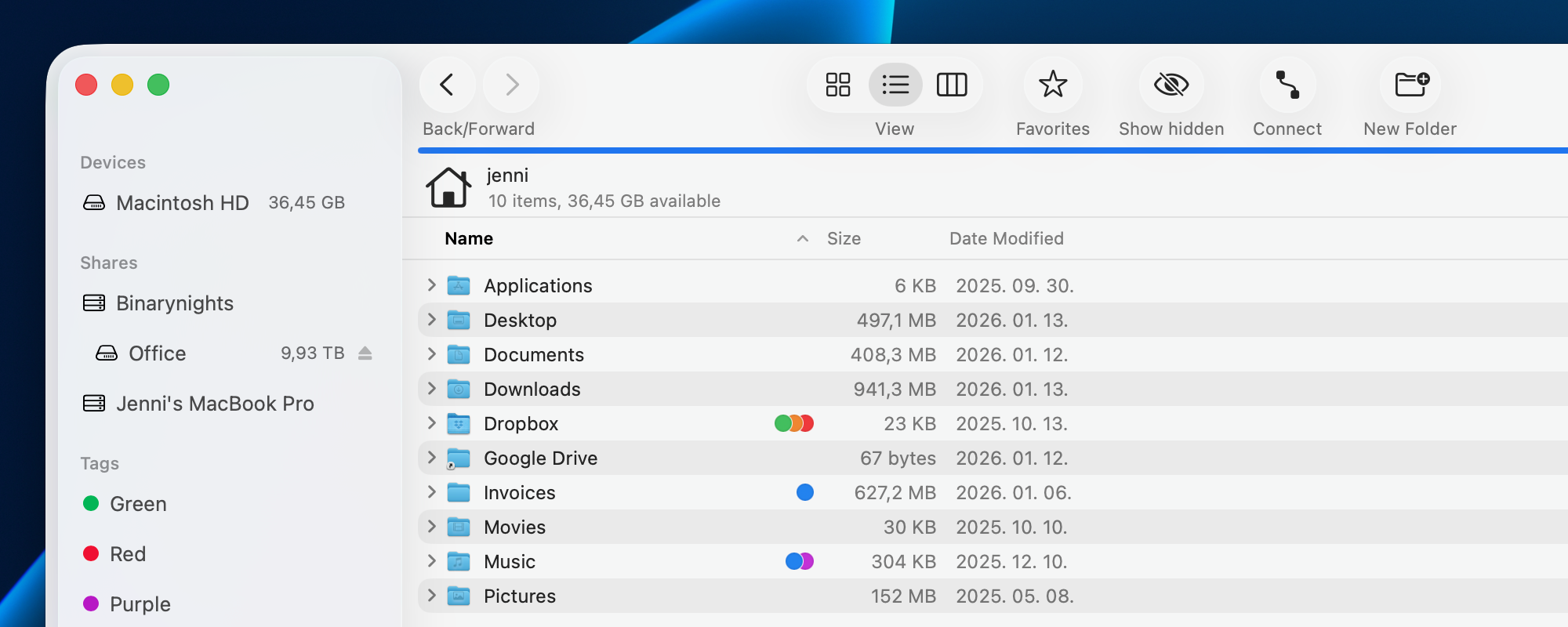
ForkLift’s new checksums feature in action
ForkLift 4.4.5 introduces a long-awaited new feature: the ability to calculate file checksums directly in the app. This has been one of the most frequently requested features, especially by users who regularly work with large files, backups, or remote transfers and need a reliable way to verify file integrity.
ForkLift supports multiple checksum algorithms: MD5, SHA-1, SHA-256, SHA-384, and SHA-512. This gives users the flexibility to choose the level of speed and security that best fits their workflow. Checksums can be calculated for one or multiple selected files via the Commands menu (Commands > Calculate Checksum). ForkLift does not calculate checksums for folders.
When the command is selected, ForkLift calculates the checksum for each file individually in a dedicated pop-up window, where the checksum type can be changed at any time. If you switch to a different algorithm, ForkLift automatically remembers your selection and uses that checksum type the next time you calculate a checksum, making repeated checks faster and more convenient.
This feature is particularly useful for verifying that files have not been altered or corrupted during transfers, ensuring that two files are truly identical, or meeting specific technical or security requirements. While checksum calculation is currently available from the menu, this is just the first step. We are already planning further improvements and additional options to calculate and display checksums in future updates.
Why checksums matter
A checksum is a small piece of data that represents the contents of a file, similar to a digital fingerprint. When a checksum is calculated, ForkLift analyzes the file and produces a unique string of characters based on its contents. Even the smallest change to the file, for example, a missing byte or a corrupted transfer, will result in a completely different checksum.
Checksums are commonly used to make sure that files are copied, downloaded, or transferred correctly. By comparing the checksum of the original file with the checksum of the copied or downloaded file, you can immediately see whether they are truly identical, without having to open or inspect the files themselves.
For everyday users, this means extra confidence that important files, backups, or downloads are intact and have not been damaged or altered along the way. For professionals, checksums provide a reliable way to verify file integrity across different devices, servers, and storage locations.
How to calculate checksums in ForkLift
To calculate a checksum for a file, select the file in ForkLift and choose Commands > Calculate Checksum from the menu. ForkLift will calculate the checksum and display the result in a pop-up window.

At the bottom of this window, you can select a different checksum algorithm if needed. Once the calculation is complete, copy the displayed checksum and click OK.
To verify a transferred file, paste the copied checksum into a text editor, then calculate the checksum of the copied file using the same algorithm. Compare the two checksum strings: if they are identical, the transferred file is not corrupted and is exactly the same as the original file.
Please note that when calculating the checksum of a remote file, ForkLift first downloads the entire file before calculating the checksum. Depending on the file size and connection speed, this process may take some time.
A real-world example from our release process
While preparing this ForkLift release, we ran into an issue during our final update checks. After uploading all required files and completing the release setup, selecting Check for Updates from the ForkLift menu resulted in an update error, without any clear indication of what went wrong.
At first glance, the update.xml file appeared to be correct, but the most likely explanation was that it still contained an error. To test this, I created a new update.xml file and uploaded it again. After that, the update process worked as expected.
Since the old and new files looked the same to me, I wanted to confirm whether they were indeed identical, so I calculated the checksum of both versions. The resulting checksums were different, which immediately confirmed that the files were not the same:
8d3328f4258f5744d8f7f943172317af3f353a9c6bbf5df2d02986edb27b34fd
vsd71725c5e8b45b45353199076d63ae3aabf80e0d277da8b5ba3d890e5680db93
I then used ForkLift’s Compare feature by selecting both files and choosing Commands > Compare from the menu. The comparison highlighted a single line that differed between the two files. At first, the difference was difficult to spot, as the lines looked identical at a glance. After closer inspection, I realized that in the first update.xml file, I had accidentally left a few characters from the previous version. The second file was created correctly and worked without issues.
In this case, I simply wanted to double-check whether the two files were identical. In most situations, you would use this process to verify that a copied file matches the original. As this example shows, checksums are invaluable for confirming that files are truly identical, and comparison tools help pinpoint exactly where those differences exist.
Full List of changes:
New
- Option to calculate a checksum from the Commands menu
- Option to rename tags through the right-click context menu in the Tags tab in Settings
- Option to delete tags through the right-click context menu in the Tags tab in Settings
Improvements
- Adds a checkmark to the selected view in the View menu
- Removes unnecessary checkmarks from the View menu
Fixes
- Fixes an issue that caused Quick Actions not to be visible in the Services menu when an item was selected for the first time
- Fixes the issue that folder sizes were not updated in the file view in List View when calculated in the Preview Pane
- Fixes an issue that caused item comments not to be visible after transferring them to an external drive
- Removes Date Last Opened as a default column in List View
- Fixes a progress indicator alignment issue in the Preview Pane
- Fixes an issue that caused the available free space of devices not to be visible in the sidebar when there was not enough space to display the name
- Fixes localization errors in multiple languages
- Adds localization to the tab context menu
- Numerous minor fixes and improvements
I just discovered this app, and I’m surprised that I hadn’t run across it before. I’ve been looking for a “better” file manager on macOS. (I came off of Windows where I used Directory Opus.)
There’s a lot of stuff here that I like, but one thing is killing me, compared to Finder. If I have a folder full of videos, I can’t find a way to get it to show the video duration as a column in the “List” view. You can do this in Finder by right-clicking the column headers. (Weirdly, “Duration” only shows as an option if the folder’s name is “Movies”, but you can name the folder “Movies”, open it and add the “Duration” column, and then name it back to its old name and the “Duration” column can stick.)
I can tell that Forklift *can* read movie durations, because it shows up in the metadata in the Preview pane.
Is there something that I am missing, or is this something that you would consider adding in a future version? Thank you.