 Binarynights

New metadata columns, editable comments, and smarter workflows
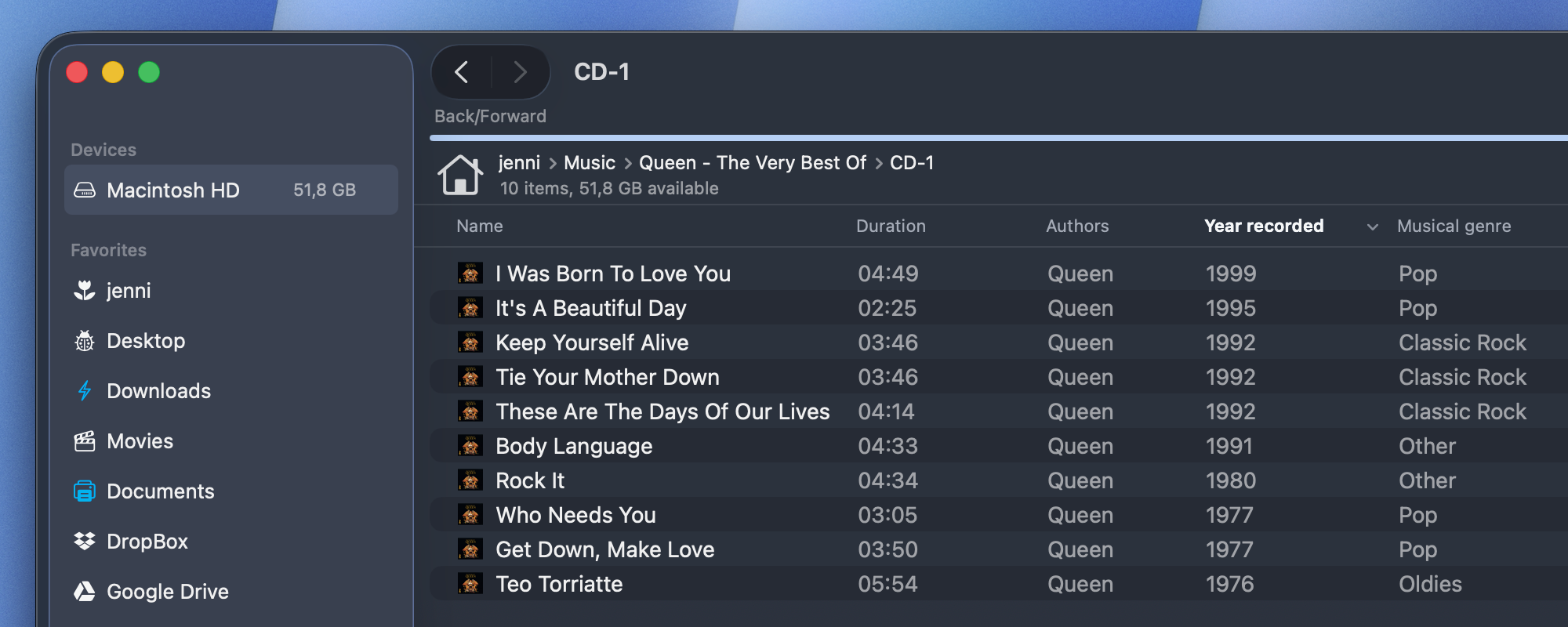
With ForkLift version 4.5, we have introduced a powerful set of new metadata columns that are now always available in List View. These columns can be added by right-clicking on the column headers. One of the most frequently requested features regarding the new columns was the ability to add the Duration column and sort files by it. That is now fully supported, making it much easier to organize and manage various media files by length, as well as other metadata such as Rating, Album, and Musical Genre, etc.
In Finder, similar metadata-based columns are only available in specific folders that are expected to contain certain file types, for example, music-related columns like Rating, Album, or Musical Genre appear only in folders such as Music. If the same files are stored in differently named folders, those columns are not available. To remove this limitation, ForkLift now allows you to add these metadata-related columns in any folder, giving you consistent access to rich file information regardless of location. Simply right-click a column header (such as “Name”) at the top of the pane to see all available columns.
We have also added a new Comments column, along with the ability to edit comments directly in the Preview Pane on the right side of the window, as well as in the separate Info window (Command-I), making it possible to add a comment directly in ForkLift.
Another small but practical improvement is the enhanced Quick Open pop-up, which now shows the full command hierarchy. This makes it easier and safer to execute commands quickly on selected items by clearly showing which action will be triggered.
Previewing additional file types such as .doc, .docx, and .eml is now supported on remote connections, bringing the same preview experience to remote servers as you already have locally.
UI fixes, view stability, and macOS Tahoe compatibility improvements
This release also includes several view-specific issues and macOS Tahoe-related problems such as unwanted scrolling and multiple selection in Icon View, and a newly introduced bug in Column View where right-clicking navigated back to the root folder.
Finally, we fixed an issue where hidden file extensions remained visible after renaming a file. Once you finish editing the file name and exit rename mode, the extension is now correctly hidden again.
Full List of changes:
New
- Editable Comments field in the Preview Pane
- New columns (Comments, Durations, Dimensions, etc.) in List View, available via the right-click context menu on column headers
- Quick Open now shows the menu hierarchy of commands
Improvements
- Shows additional information in Activities when comparing remote files
Fixes
- Fixes an issue in Column View where a right-click navigated back to the root
- Fixes the placement of the Tags pop-over on macOS Tahoe
- Fixes an issue in Column View where, in some cases, right-clicking an item showed an incorrect context menu
- Fixes an issue where ForkLift couldn’t QuickLook some file types such as .docx, .doc, .eml on remote connections
- Fixes an issue where the available free space wasn’t displayed after changing the view type
- Fixes an issue in Icon View where navigating files with the arrow keys could leave multiple items selected
- Fixes an issue in Icon View where, in some cases, the selected item was centered in the pane, causing unwanted scrolling
- Fixes an issue where the View toolbar item didn’t display an icon while customizing the toolbar
- Fixes an issue which made it possible to save the Favorite Manager or the Connect Panel as part of a workspace
- Fixes an issue which displayed the keyboard shortcut for the Show Previous Tab command incorrectly in the menu
- Fixes an issue that didn’t hide the hidden file extension after the file name was edited
- Localization fixes and improvements
- Numerous minor fixes and improvements
Whew, thanks for adding the duration column, that is what was keeping me from giving this a real shot. I’m definitely going to try it out now.
Thank you for the feedback! I am glad to hear that the Duration column made the difference for you. Feel free to share your experience with us once you have had some time to use ForkLift.
Huge thanks for the update! It’s great to see the continued polish on ForkLift.
Just a quick bit of feedback regarding synclets: I’ve noticed it’s currently impossible to edit one if the source folder has been moved or renamed. Since the “Edit” function tries to connect/validate the path immediately, it fails before you can actually get into the settings to update the location.
Keep up the fantastic work!
Thank you for the kind words and for sharing the feedback!
Regarding saved sync favorites: the source and destination paths are fixed at the time the synclet is created and cannot be modified later, even in edit mode. Because of this, if a folder in the path is moved or renamed, the synclet becomes unusable. In that case, the correct solution is to create a new synclet with the updated locations.
We could consider saving relative paths or adding the option to edit paths, but that could create other problems, so for now the most straightforward approach is to create a new sync based on the folders that currently exist.
“Always resize name column” in view options is broken for me. If enabled, name column occupies all visible space (and introduces horizontal scroll) after Forklift is reopened
Thank you for reporting this issue. We are investigating this problem.
I’ve also experienced this issue on 4.5, can 100% reproduce – the name column will never resize regardless of whether/not the feature is enabled.
This issue will be fixed in the next update. Unfortunately, we do not know exactly what caused the issue or why it disappeared. However, once we created the app using Apple’s latest macOS development tools, the problem no longer occurred. I hope that it won’t return later.
When I add a file (not a folder) to my favourites, I can no longer edit the favourite (name, icon, colour). I can only delete it or hide it, but I can no longer edit it.
It is not possible to edit favorite files like that. I have added this to our feature request list because it would make sense to allow editing.
That surprises me, because it used to work. I have favorites that point to a file, each with its own icon and color (which I assigned to them).
It seems, that you can edit those favorites inside the Favorites editor (Favorites > Show Favorites) but not in the sidebar, which doesn’t really make sense in my opinion. We will try to add those context menu items to the sidebar as well.
Great, now I know how to edit them (again) via Favorites > Show Favorites.
But I’m sure I was able to change them via the sidebar a while ago.