 Binarynights

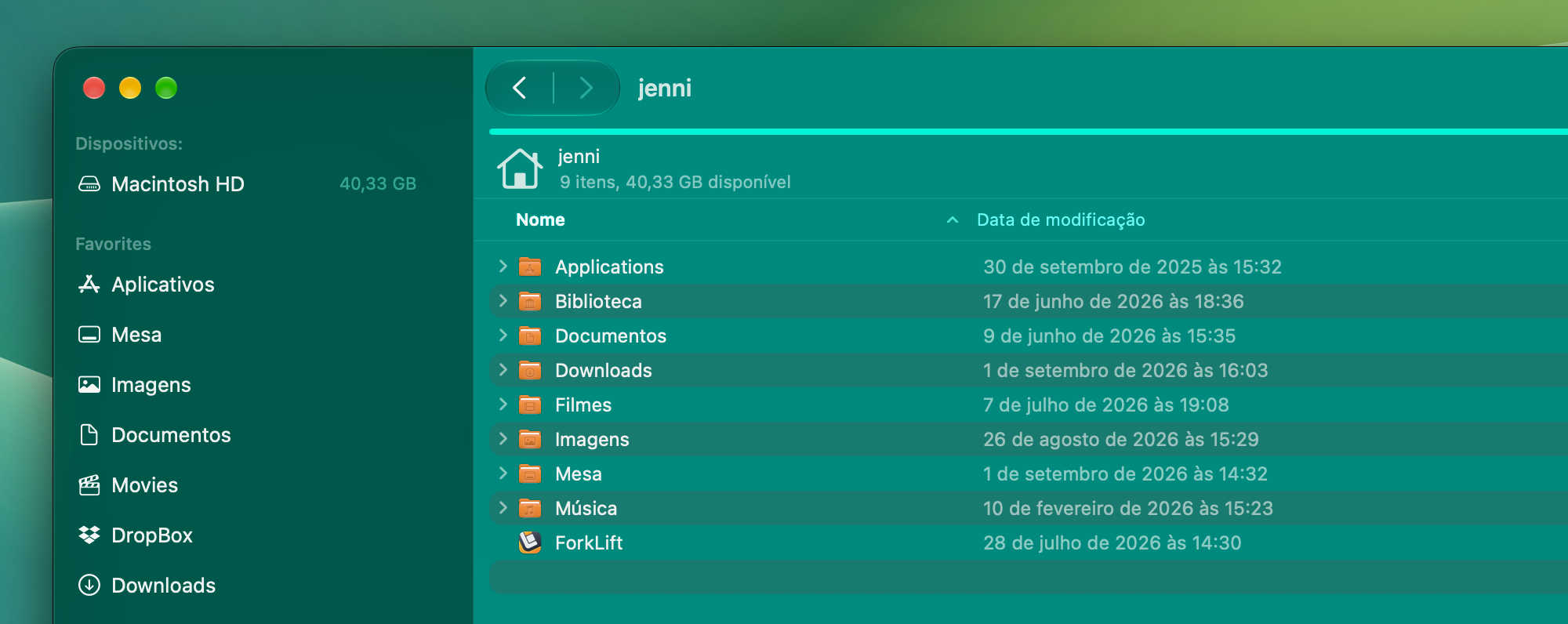
Brazilian Portuguese Localization
ForkLift is now available in Brazilian Portuguese, making the app more accessible to users in Brazil.
Safer Handling of Conflicting Files
In the previous version (ForkLift 4.7.4), we tried to address a potential data loss issue that can occur in two edge cases when transferring items with the same names. Normally, this situation can’t occur because only one item with a given name can exist in a single location. However, if you expand multiple folders or search for a term and select items with conflicting names, ForkLift can end up with two or more source items with the same name that are being transferred to the same destination.
In the previous version, we changed the behavior so that a conflict window was displayed in these cases, asking the user to decide how ForkLift should handle the conflict. However, this type of conflict is different from a normal source-versus-target conflict. The conflicting items are all source files, and they may be transferred in an order that can’t be determined in advance. As a result, it isn’t necessarily clear from the conflict window which file would ultimately overwrite which other file. A user could easily select Replace without realizing which file would be kept and which file would be overwritten. Once this happens, the overwritten file can’t be recovered through ForkLift, which could result in unintended data loss.
Although this is a very uncommon use case, we believe it is safer to prevent the transfer from starting rather than asking the user to make a decision that can’t be made reliably from the conflict window. Since the previous fix still had some issues and we had to revisit this behavior, we decided that when source items with conflicting names are selected for transfer to the same destination, ForkLift stops the transfer before it starts and warns the user about the conflict. ForkLift won’t display a conflict window in this situation.
It is unlikely that a user intentionally wants to copy or move several files with the same name, such as five index.html files, to the same location at once. If this happens accidentally, the user should review the files they are trying to transfer and determine which one they actually want to copy or move. They can then transfer the desired file separately.
We also checked how other file managers handle this situation. They generally transfer only one of the conflicting files without notifying the user that a conflict exists. We believe it is safer to explicitly draw attention to the conflict and require the user to resolve it themselves, with a clear understanding of which file contains which content. This prevents the user from making an irreversible choice in the conflict window without being able to clearly determine which file will ultimately be kept.
Sync and Column View Improvements
At the bottom of the Sync Window, ForkLift displays how many files will be synced and how many of those files will be added, updated, or deleted. We have made these buttons clickable, so you can now use them to filter the view by All, Added, Updated, and Deleted files. This can provide a better overview of what is going to happen during synchronization.
We have also added the option to increase or decrease the text size in Column View using the same keyboard shortcuts that were already available in the other views (Command – + and Command – -).
Hopefully, column widths in Column View will now be calculated correctly when the Resize columns to fit option is enabled. We have tried to take every factor into account that can affect the amount of space required by the contents of each column.
When an external drive was open in a pane of ForkLift and the drive was disconnected without ejecting it first, the file list remained visible in ForkLift, giving the impression that the drive was still connected. We have fixed this issue as well.
We have also fixed an issue (introduced in the previous version) where, when transferring items from search results to a remote location, transfers remained in the queue after the maximum number of simultaneous transfers configured in the settings had been completed.
Full List of changes:
New
- Brazilian Portuguese localization
Improvements
- The buttons at the bottom of the Sync Window are now clickable and filter the view by All, Added, Updated, and Deleted files
- When Resize columns to fit is enabled, column widths now take the Bold Folder Names setting into account
- Adds the option to use the Command-+ keyboard shortcut to increase the font size in Column View
- Adds the option to use the Command– keyboard shortcut to decrease the font size in Column View
- Changes the behavior of file transfers when the source contains items with conflicting names. The transfer now does not start to prevent files from being unintentionally overwritten
Fixes
- Fixes an issue with column widths in Column View when the Resize columns to fit setting is enabled and the scroll bar is visible
- Fixes an issue where, after deselecting all items from synchronization, it was possible to click the Synchronize button
- Fixes an issue in the Logs where the number of synchronized items was displayed as the total number of analyzed items during synchronization instead of the number of synchronized items
- Fixes an issue introduced in version 4.7.4 where transfers from search results to remote connections remained in the queue after the maximum number of simultaneous transfers configured in the settings had been completed
- Fixes a possible hang when the remote server is not responding
- Fixes an issue where the file view did not update when an external drive was disconnected without ejecting the disk first
- Fixes small localization issues
Hi all – possible bug report – whenever I launch FL I get the “full disk access” prompt but every time I follow the link to the settings page theres no ForkLift entry to enable.
Running Seqouia 15.7.9
Thanks!
This behavior is managed by macOS, so there is not much we can do about this problem. This can happen sometimes, and to fix it, you may need to play around with the settings a little bit.
First, make sure that ForkLift is located in the Applications folder. Then go to System Settings > Privacy & Security > Full Disk Access and toggle Full Disk Access off and on, or on, off, and on again. Check if ForkLift still asks for Full Disk Access. If it does not, restart ForkLift manually and check again.
If ForkLift is still asking for Full Disk Access, remove ForkLift from the list of apps in the Full Disk Access settings by selecting it and clicking the Minus button at the bottom of the list. Then add it again using the Plus button.
If that still does not help, restart your Mac and try the same steps again.
Ohhh I didn’t realize you have to manually add Forklift to the list of FDA apps, I added it and now the dialog has gone away. Thanks!
Normally, you do not have to do that, but if enabling Full Disk Access from ForkLift doesn’t work for some reason, you can try doing it manually. I am glad that worked.
“We also checked how other file managers handle this situation. They generally transfer only one of the conflicting files without notifying the user that a conflict exists.”
In case of SpeedCommander an incremental index will be added to the related files. Maybe this could be a solution for Forklift.
Thank you for letting us know. The same happens in the case of a normal conflict in ForkLift if you select Keep Both.
We have decided not to allow users to transfer multiple items with the same name from the same source to the same destination at the same time. This is an edge case and is most likely not an intended operation. We believe it is better to point out the conflict beforehand and let the user decide how to handle the files rather than automatically renaming them, which could cause other unexpected issues.
Every time FL launches on Golden Gate the sidebar width gets bigger.
Do you start it manually, or does it automatically open? Also, what view and layout are you using?
Just launch from the dock. Single pane with List or Icon layout, do not matter. Each time the width of sidebar grows.
Thank you for reporting, we were able to reproduce the issue.
Thank you for adding the text size adjustment keyboard shortcut in column view. In different work locations I use different monitors, sizes, resolutions, etc. This small change is very pleasant.
We are glad to hear that you like that change!
Love ForkLift, especially the custom Tools. One request: could Eject fully eject the disk, like Finder does? Right now it only unmounts.
After ejecting a DMG in ForkLift, the image stays attached, and double-clicking the .dmg again does nothing. External drives also stay attached, and if a DMG was opened from one, the drive can’t be ejected at all. I have to clean up in Disk Utility. With this fixed, ForkLift would be perfect for me!
diskutil eject does it right)
I’m sorry for this issue. We use the eject command to eject the drives, and it should eject but for some reason, it doesn’t. I don’t think that we can fix this, but we will take a look again.