BinaryNights Blog

Google Drive Access in ForkLift: Current Limitations and How to Work Around Them – Updated

Edited to Add (September 30, 2024): We are happy to announce that ForkLift’s direct integration with Google Drive has been fully restored. After completing Google’s Cloud Application Security Assessment (CASA), you can now connect to Google Drive without any warnings or issues. Please check out this post for details on reconnecting.

Recently, Google has limited or blocked direct connections to Google Drive through ForkLift. Depending on whether users have previously connected to Google Drive through ForkLift, they may encounter one of two warnings when trying to connect via the Connect Panel.

  • Users with Previous Connections: If users have connected to Google Drive through ForkLift before, they can still connect but will see a warning that says, “Google hasn’t verified this app.” To proceed, they can click “Advanced” and then acknowledge that Google does not consider the connection safe.
Error message - Google hasn't verified this app
  • Users Without Recent Connections: If users have not recently connected to Google Drive through ForkLift, they are completely blocked and see a “This app is blocked” warning, preventing any further action.

Why Has Google Blocked ForkLift’s Connection to Google Drive?

Previously, Google allowed ForkLift to access, edit, create, and delete files on Google Drive when users granted permission. This level of access is necessary for a file manager like ForkLift to function properly with files stored on Google Drive.

In the past, Google did not require a thorough review of apps that were allowed to work with data stored in Google Drive accounts. However, as online security has become more important, Google now requires apps like ForkLift to undergo the Cloud Application Security Assessment (CASA). This assessment ensures that apps meet strict security standards to protect user data and maintain secure integrations.

Undergoing the CASA process helps ForkLift identify and fix any security issues, safeguarding user data and ensuring our security practices are transparent. However, meeting these requirements can be a lengthy process. Even if ForkLift meets all standards immediately, the assessment can take up to six weeks. If significant changes are needed, it could take much longer. We are committed to meeting all the requirements, and we hope to restore the ability to connect to Google Drive in the future.

How to Access Google Drive in ForkLift

While we work to re-establish a direct connection to Google Drive in ForkLift, you can use a workaround to access your Google Drive files:

  1. Download and Install the Google Drive Desktop App: Ensure the Google Drive desktop app is installed on your Mac and that you are logged into your Google account within the app. You can download the app here.
  2. Locate Your Google Drive Folder:
    • In ForkLift, go to the menu and select Go > Go to Folder.
    • Paste the following path and press Enter: ~/Library/CloudStorage
  3. Add Google Drive to Your Sidebar:
    • Drag your Google Drive folder from that location to the sidebar of ForkLift to add it as a favorite.
    • You can now easily access your Google Drive files from the ForkLift sidebar.

By following these steps, you can continue to manage your Google Drive files using ForkLift until direct integration is available again.

ForkLift 4.1.6 is available

New

  • Chinese localization
  • Dragging a local or remote item over an app in the sidebar opens the dragged item in the selected app
  • More available path formats when copying the path of items

Improvements

  • Improved handling of Title Case in the multi-rename window
  • ForkLift now asks for confirmation when an item is dragged over a favorite in the sidebar, if the relevant setting is enabled
  • Option to compress multiple archives

Fixes

  • Fixes several localization issues
  • Fixes a sound effect when saving a multi-rename favorite
  • Fixes an issue where the Action toolbar and menu items were sometimes empty
  • Fixes an issue where the search field could not be opened with the Command-F keyboard shortcut in certain cases
  • Fixes an issue where the Compress menu item was disabled, but the text still referenced a previous selection
  • Numerous minor fixes and improvements

Download ForkLift 4.1.6

ForkLift 4.1.5 is available

New

  • Items inside the Multi-Rename Window can now be manually reorganized by drag and drop
  • Local move operations are no longer queued

Fixes

  • Fixes a potential crash when clicking the Synchronize button in the Sync window, an issue introduced in version 4.1.4
  • Fixes an issue on macOS Sequoia Beta that made it impossible to close tabs

Download ForkLift 4.1.5

ForkLift 4.1.4 is available

New

  • Japanese localization

Improvements

  • When ForkLift is the default file viewer, already open locations don’t open in a new tab but the already open tab gets activated if it is open in the main ForkLift window

Fixes

  • Icon preview of items inside archives in Icon View is now available
  • Fixes some localization issues

Download ForkLift 4.1.4

ForkLift 4.1.3 is available

ForkLift 4.1.3 introduces some major changes to the View Option Panel. You can open the view options from the menu: View > Show View Options or by using the Command-J keyboard shortcut.

It is now possible to use recursive view settings on the View Option Panel by selecting the “This Folder and Subfolders” option from the drop-down menu at the top of the panel.

We have added the option to change the font inside the panes. The font outside the panes (sidebar, toolbar, preview pane, etc.) can’t be changed.

You can change the font on the View Options Panel by clicking on the selected font type next to “Font”. The default font is called “System Font Regular”. When you click the font, macOS’s built-in font selector opens. Some available fonts don’t work well in ForkLift because they are cut off at the bottom or at the top. Please consider not using those fonts.

After you change the system font, the “System Font Regular 12.0 pt.” font will be added to the “Recently Used” section, but it is possible that it will disappear from that section after a while. Apple generally doesn’t allow users access to the system font, so it is not listed in the font picker. You can restore the system font by Alt-Clicking the selected font on the ForkLift View Option Panel.

If you change the font size in the Font Picker window, that won’t be reflected in ForkLift. If you want to change the font size, you should do that on the ForkLift View Options Panel by changing the “Font size” below “Font”.

By selecting the “Bold Folders” setting, you can make the folder names more apparent.

New

  • Connection to Amazon S3 compatible custom endpoints (Scaleway, Minio, etc) is possible
  • Option to set recursive view settings on the View Option Panel by selecting the “This Folder and Subfolders” option
  • Option to use bold folder names, which can be enabled on the View Option Panel
  • Option to use different fonts, which can be selected on the View Option Panel. Going back to the default System Font is possible by Alt-Clicking the selected font on the View Option Panel
  • Favorite custom icons are shown inside the tabs. If the same favorite is added to the sidebar multiple times, the icons shown can vary
  • ForkLift displays the exact size of items in bytes in the Info Window
  • ForkLift can now parse URLs including usernames, passwords, and port numbers when pasted into the Server field on the Connect Panel. In some cases, it also changes the protocol automatically according to the URL

Improvements

  • Option to select text inside the About ForkLift window

Fixes

  • Fixes a Sonoma bug, which made all color tags gray in the iCloud Drive. Some versions of the tags still appeared gray in the previous version
  • Fixes an issue where the same folder name in the path caused a navigation issue
  • Fixes a possible crash in the Hungarian version when the “Delete orphaned items” option was enabled
  • Fixes an issue, which made it impossible to drag items over the Trash Can in the Dock while using Column View
  • Fixes an issue, which displayed the sizes of files as Zero KB after using the “Calculate All Folder Sizes” command
  • Fixes a possible data loss during local move operations
  • It is not possible any longer to go back to the parent folder by double-clicking an empty space in column and icon view
  • Fixes an issue, which didn’t separate the path from the URL on the Connect Panel when connecting to WebDAV
  • Fixes some minor localization issues
  • Other minor fixes and improvements

Download ForkLift 4.1.3

ForkLift 4.1.2 is available

New

  • Phone icon as a custom favorite icon

Improvements

  • Resume is supported on older versions of OpenSSH servers, where resume isn’t supported by default
  • ForkLift displays color labels, which is an older version of tags
  • Adding tags is an immediate action

Fixes

  • Fixes a Sonoma bug, which made all color tags gray in the iCloud Drive
  • Fixes an issue in Column View, where the disconnected server remained visible in the file view
  • ForkLift doesn’t reopen previously open windows when the “Restore Windows and Tabs on Startup” setting is enabled
  • Fixes a refresh issue on SMB connections, tags and other changes should show up immediately
  • Fixes an issue on Dropbox, where too many activities caused issues and not all items could be transferred or deleted
  • Fixes an issue, which made it impossible to rename items in the search results
  • Fixes issues in the context menu of sidebar items
  • The available free sizes of the drives in the sidebar get updated immediately
  • Fixes problems in the behavior of the Editing pane in the Settings window
  • Minor fixes of the custom themes
  • When the “Resize columns to fit” setting is enabled in Column View, and the columns get manually resized, the columns don’t jump back immediately to their calculated sizes, that only happens after a second action is made
  • Fixes an issue where during the saving of a sync favorite, the entered data got lost when the mouse pointer was moved out of the pop-up window
  • Other minor fixes and improvements

Download ForkLift 4.1.2

New features in the latest ForkLift versions

In the previous ForkLift versions we have added multiple new features. In this blog post we are going to show you how some of these features work. Make sure to update to the latest version to access all of the following features. To update, select ForkLift > Check for Updates from the menu and update if there is a new version.

Option to claim the upgrade bonus

In ForkLift 4.0.6, we have added the option to claim the upgrade bonus. The upgrade bonus is only available to users who own a license to a previous ForkLift version but weren’t granted or haven’t claimed an upgrade bonus so far. You can find a thorough explanation about that option in this blog post.

Calculate All Folder Sizes

It has been possible to tell ForkLift to always calculate sizes through the View Options Panel (Command-J) but always calculating all sizes can consume lot of resources. It has also been possible to calculate the size of the selected folders from the File menu. Starting from version 4.0.6, a new feature allows users to calculate all folder sizes by selecting File > Calculate All Folder Sizes from the menu. The sizes are only calculated in the current location, if you change folders, the sizes won’t be calculated again. Calculate All Folder Sizes shows up in the File menu only if no items are selected in the active pane. If an item is selected, you can deselect it by holding down the Command key and clicking the selected item.

Custom favorite icons

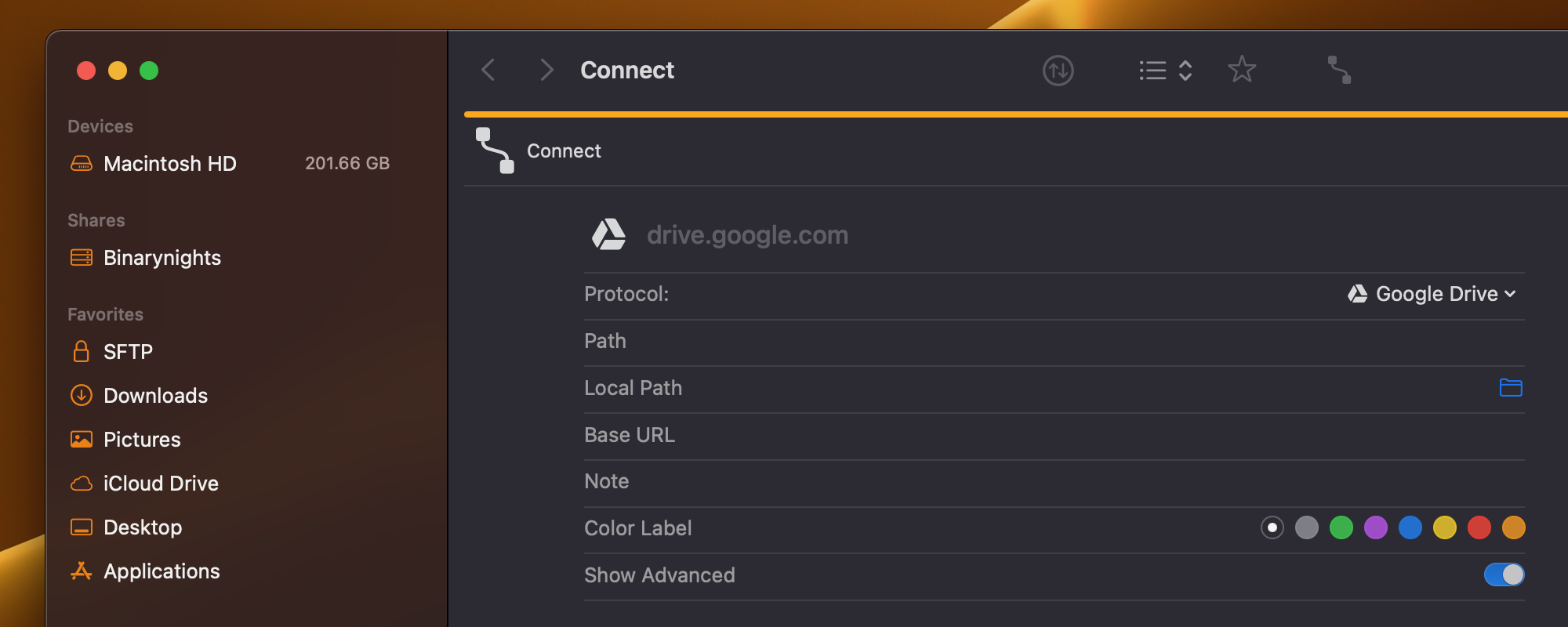
As a new feature, you can add custom icons to your favorites. You can add a custom icon when creating or editing a favorite.

Create a new favorite from the Connect Panel and select a custom favorite icon:

  1. Open the Connect Panel with Command-K or from the menu: Go > Connect
  2. Select the protocol that you want to use. – All protocols have their default icons, which you can see in the drop-down menu and which appear at the beginning of the first line next to the name of the connection.
  3. To change the icon, click the icon next to the name (placeholder).
    ForkLift 4 choose a custom favorite icon on the Connect Panel by clicking the icon next to the name.
  4. From the pop-up, select the icon you want to use. If you want to go back to the default icon, then click the “Use Default Image” button at the bottom. If you have chosen the right icon, click outside the pop-up.
  5. You can change the color of the icon by selecting a color label. To access that option, make sure to turn on the advanced settings by toggling the “Show Advanced” option.
  6. Enter the credentials of the connection and click “Add to Favorites”.

Edit an existing favorite:

  1. Right-click the favorite in the sidebar and select “Edit”.
  2. To change the icon, click the icon next to the name.
  3. From the pop-up, select the icon you want to use. If you want to go back to the default icon, then click the “Use Default Image” button at the bottom. If you have chosen the right icon, click outside the pop-up.
  4. You can change the color of the icon by selecting a color label. To access that option, make sure to turn on the advanced settings by toggling the “Show Advanced” option.
  5. Click “Save”

If you use Control-Click as the secondary click, then you can’t edit a favorite by right-clicking it inside the sidebar. In that case, select Favorites > Show Favorites from the menu. Select the favorite you want to edit and click the Pen button at the bottom of the pane to edit the favorite. After editing the favorite, you can close the favorite manager by pressing the ESC key on your keyboard.

You can also create a favorite by dragging an item into the sidebar or by selecting an item and selecting Favorites > Add to Favorites from the menu. During that process, you can’t select a custom icon. To change the icon of such a favorite, follow the above steps to edit the existing favorite.

Revert the custom favorite icon to the default icon:

If you want to go back to the default icon, then edit the favorite by using the above steps and instead of choosing a custom icon, click the “Use Default Image” button in the icon selector pop-up and save the favorite.

Print files

One of the new features introduced in version 4.0.7 is the option to print files from ForkLift. This is pretty straightforward, select the items you want to print and choose File > Print from the menu or use the Command-P keyboard shortcut.

Open with section

The addition of the “Open with” section has been highly requested in the past. We are pleased to announce its inclusion in ForkLift, enabling users to seamlessly change the default app without having to switch back to Finder. This feature allows users to specify the app they wish to use for opening selected files or file types.

The “Open with” section can be found in the Info Window, which you can either access in the Preview Pane of ForkLift by selecting the “i” icon at the top of the pane, or in the stand-alone Info Window, which can be opened with the Command-I shortcut, or with the Get Info command from the File menu or the right-click context menu of an item.

When there is at least one app on your Mac capable of opening a specific file type, a default app is assigned to that extension for opening it. But it is possible that you want to open a selected file or all files with the same extension with a different app. Now, you can select that app in ForkLift in the “Open with” section.

You can change the app which should open the selected file by selecting a different app from the drop-down menu inside the “Open with” section. If you click the “Change All…” button below the selected app, you can change the default app to open all files with the same extension.

Edit columns by right-clicking the column headers

Another new feature is the option to edit the columns by right clicking the column headers in list view. The column headers are below the path bar, on top of the columns in list view and tell you which info is displayed in each column, such as Name, Size, Date Modified, or Tags.

Right-click the column headers in ForkLift 4 to add or remove columns in list view.Depending on what info you want to see, you can add or remove columns inside ForkLift. In the past, that was only possible through the View Options Panel (Command-J or View > Show View Options) but now it is also possible inside the panes.

To add a new column:

Right-click anywhere inside the column header and in the right-click context menu, click the name of the column, you want to add to ForkLift. (The currently displayed columns are marked with a check mark. Click one of the unmarked columns to add it.)

To remove a column:

Right-click anywhere inside the column header and in the right-click context menu, click the name of the column, you want to remove from ForkLift. (The currently displayed columns are marked with a check mark. Click one of the marked columns to remove it.) The Name column can’t be removed.

It might be useful to know that you can reorder the columns by grabbing them at their column headers and drag and dropping them to a new location. ForkLift remembers these changes and accordingly reorders the columns inside the right-click menu as well. The position of the Name column can’t be changed.

Default View Settings

When you change the columns in one tab/pane, then the columns don’t automatically change in all other tabs. You should either make the same changes in all tabs, or you should save your current settings as the Default View Settings and then restore those in other tabs as well.

You can do that by selecting View > Save View Settings as Defaults from the menu and then selecting View > Restore Default View Settings from the menu in a different tab. Saving view settings as the default view settings doesn’t mean that ForkLift opens new tabs using those settings. ForkLift always duplicates the view settings of the currently active tab when a new tab is being opened. If you want to use the default view settings, then open a new tab and select View > Restore Default View Settings from the menu.

Sorting order of columns

The default sorting order of some columns has also changed. The default sorting order of the Size and Date columns has become descending, which means that the biggest and latest files are displayed on top by default. ForkLift also remembers the last used sorting order and restores that after you order by a different attribute and then switch back.

Sidebar Editor

We have added a Sidebar Editor to ForkLift to allow users to hide or display individual favorites or favorite groups directly in the sidebar. You can enable the Sidebar Editor by selecting View > Show Sidebar Editor form the menu.

You can deselect favorites by unchecking the boxes in front of their names. This way, it has become possible to hide the entire Shares section or individual shares on the network. That is especially useful in big offices, where there can be hundreds of shares on the same network. Users usually don’t want to see all of those available shares, especially if those are constantly connecting to and disconnecting from the network, which makes the Shares section expand and contract, causing a visual distraction.

You can put back hidden favorites by checking their boxes again.

ForkLift 4 Sidebar Editor to hide and show favorites in the sidebar.The Connections section can’t be hidden from the sidebar.

You can close the Sidebar editor from the menu by selecting View > Hide Sidebar Editor.

Since the introduction of the Sidebar Editor, it has also become possible to hide individual favorites from the sidebar (without opening the Sidebar Editor) by right-clicking them in the sidebar and selecting “Hide from Sidebar”.

New languages

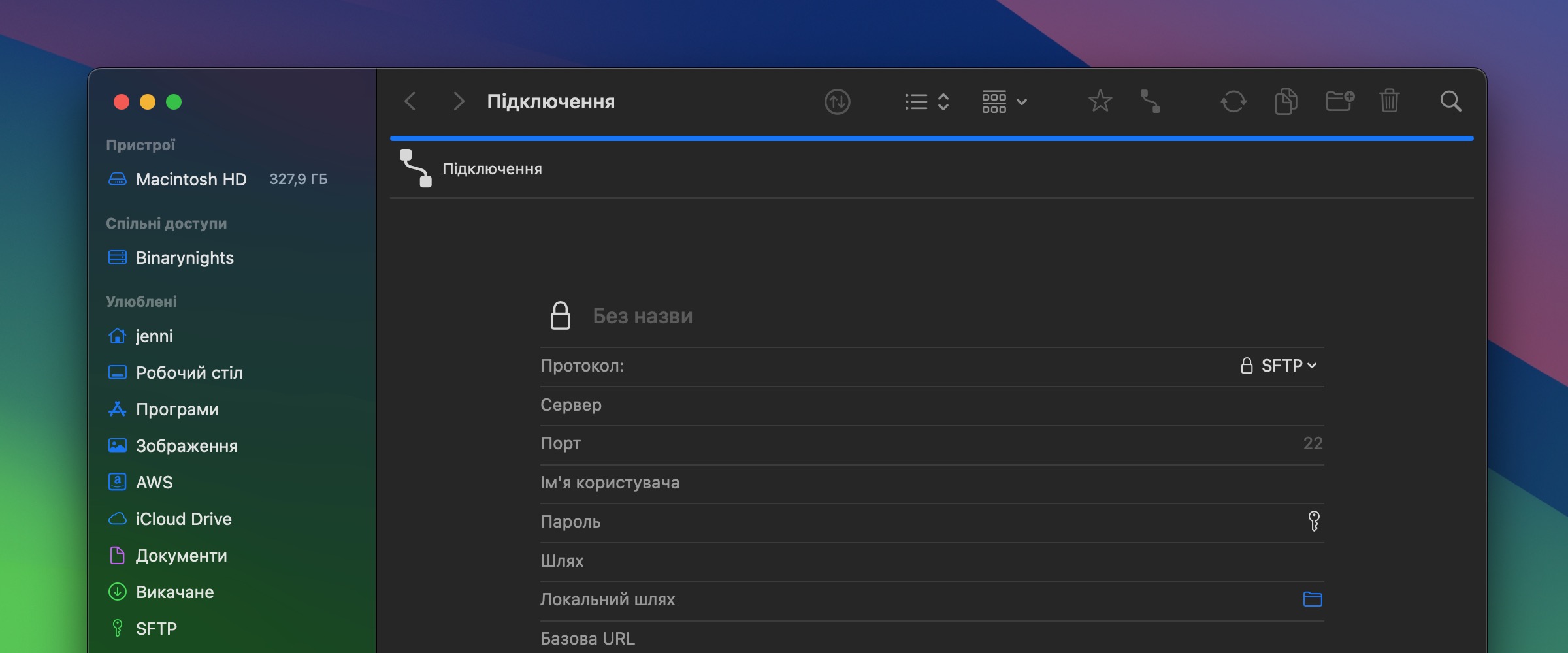
We have added Spanish, Italian, Ukrainian and Polish localization to ForkLift. The language automatically changes following the order of the preferred languages inside the System Settings under Language & Region. You can also set a custom language for ForkLift under System Settings > Language & Region > Applications.

New theme

A new dark theme called “Polar Night” is available under ForkLift > Settings > Themes.

We hope these new features enhance your experience with ForkLift. Try them out today and let us know what you think!

Download ForkLift

ForkLift 4.1.1 is available

Fixes

  • Fixes an issue which opened all remote connections and folders in the right pane introduced in version 4.1
  • Fixes a display issue of the alternating background introduced in version 4.1
  • Fixes a deselecting issue in Icon View, which could cause data loss
  • Fixes a toggle issue in the Side Bar Editor in the Shares section, which showed hidden items as selected

Download ForkLift 4.1.1

ForkLift 4.1 is available

New

  • Spanish localization
  • “Open with” section in the Info Window: Set an application to open a specific file, or set a default app to open all items with the same extension
  • Sidebar Editor available from the View menu
  • Right-click on column headers to add or remove columns in list view
  • The default sorting order of the date and size columns in list view has become descending, showing the latest and biggest items on top. ForkLift remembers the latest settings and uses those inside the same tab
  • “Save View Settings as Defaults” menu item inside the View menu
  • Polar Night theme

Improvements

  • Slight changes of the X button in the tabs
  • Slight changes in the toolbar’s look in full screen mode

Fixes

  • Fixes a favorite selection issue in the sidebar introduced in version 4.0.7
  • Fixes an issue which updated the creation date (Date Created) when copying to external drives
  • Fixes listing issues with certain FTP servers
  • Fixes an issue, which allowed to close pinned tabs with the X button
  • Fixes an issue, which allowed to close pinned tabs with the middle mouse button
  • Fixes an issue of Google Drive where some folders were recursively listed
  • Fixes an issue with the “Restore Default View Settings” menu item
  • Minor fixes of the localizations
  • Other minor fixes and improvements

Download ForkLift 4.1

ForkLift 4.0.7 is available

New

  • Italian localization
  • Ukrainian localization
  • Polish localization
  • Option to print the selected files from the File menu

Improvements

  • Improves the performance of “New Folder with Selection”
  • Changes the editability of .eml files, which makes them previewable

Fixes

  • Filters out the Tools (created in the Settings) from the “Open Favorite” section of Quick Open because those couldn’t be executed. The tools are now only listed in the “Execute Command” section
  • Addresses the Terrapin Vulnerability (CVE-2023-48795)

Download ForkLift 4.0.7