BinaryNights Blog

ForkLift 4.1.3 is available

ForkLift 4.1.3 introduces some major changes to the View Option Panel. You can open the view options from the menu: View > Show View Options or by using the Command-J keyboard shortcut.

It is now possible to use recursive view settings on the View Option Panel by selecting the “This Folder and Subfolders” option from the drop-down menu at the top of the panel.

We have added the option to change the font inside the panes. The font outside the panes (sidebar, toolbar, preview pane, etc.) can’t be changed.

You can change the font on the View Options Panel by clicking on the selected font type next to “Font”. The default font is called “System Font Regular”. When you click the font, macOS’s built-in font selector opens. Some available fonts don’t work well in ForkLift because they are cut off at the bottom or at the top. Please consider not using those fonts.

After you change the system font, the “System Font Regular 12.0 pt.” font will be added to the “Recently Used” section, but it is possible that it will disappear from that section after a while. Apple generally doesn’t allow users access to the system font, so it is not listed in the font picker. You can restore the system font by Alt-Clicking the selected font on the ForkLift View Option Panel.

If you change the font size in the Font Picker window, that won’t be reflected in ForkLift. If you want to change the font size, you should do that on the ForkLift View Options Panel by changing the “Font size” below “Font”.

By selecting the “Bold Folders” setting, you can make the folder names more apparent.

New

  • Connection to Amazon S3 compatible custom endpoints (Scaleway, Minio, etc) is possible
  • Option to set recursive view settings on the View Option Panel by selecting the “This Folder and Subfolders” option
  • Option to use bold folder names, which can be enabled on the View Option Panel
  • Option to use different fonts, which can be selected on the View Option Panel. Going back to the default System Font is possible by Alt-Clicking the selected font on the View Option Panel
  • Favorite custom icons are shown inside the tabs. If the same favorite is added to the sidebar multiple times, the icons shown can vary
  • ForkLift displays the exact size of items in bytes in the Info Window
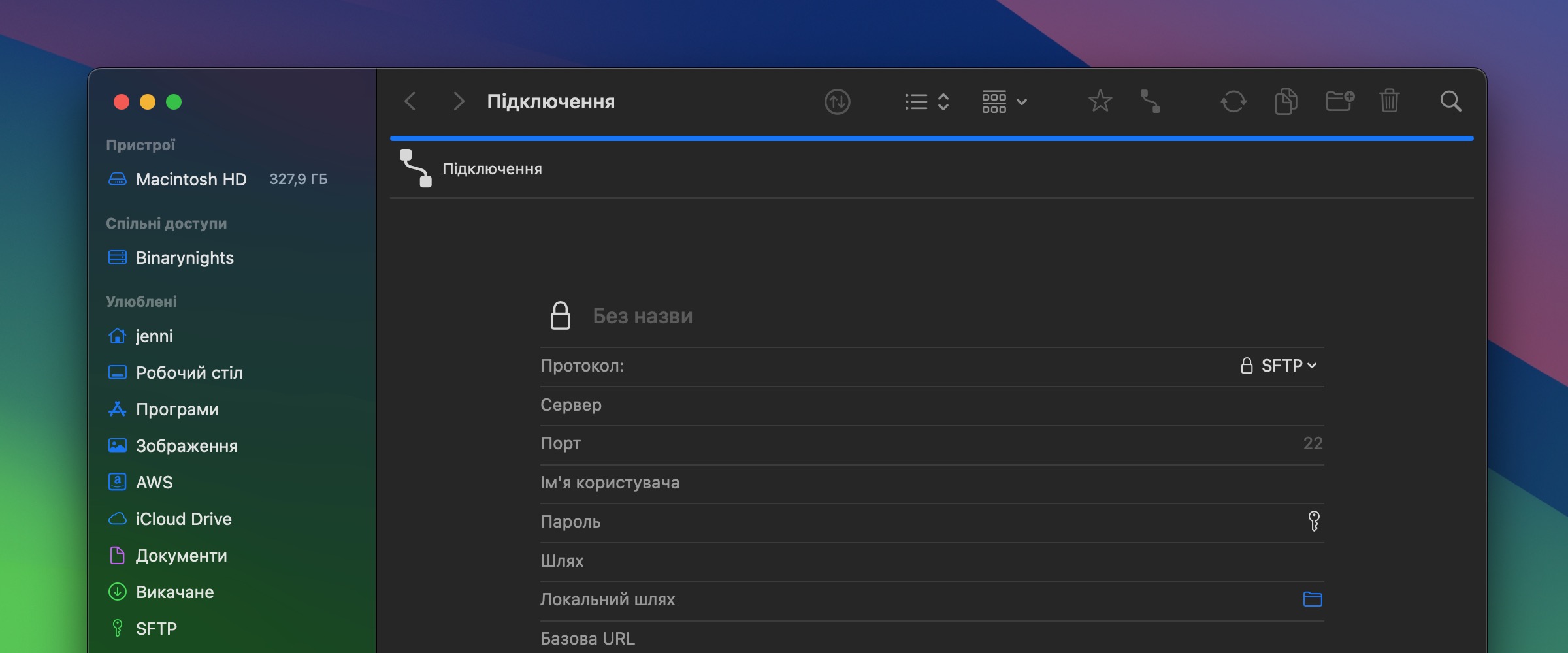
  • ForkLift can now parse URLs including usernames, passwords, and port numbers when pasted into the Server field on the Connect Panel. In some cases, it also changes the protocol automatically according to the URL

Improvements

  • Option to select text inside the About ForkLift window

Fixes

  • Fixes a Sonoma bug, which made all color tags gray in the iCloud Drive. Some versions of the tags still appeared gray in the previous version
  • Fixes an issue where the same folder name in the path caused a navigation issue
  • Fixes a possible crash in the Hungarian version when the “Delete orphaned items” option was enabled
  • Fixes an issue, which made it impossible to drag items over the Trash Can in the Dock while using Column View
  • Fixes an issue, which displayed the sizes of files as Zero KB after using the “Calculate All Folder Sizes” command
  • Fixes a possible data loss during local move operations
  • It is not possible any longer to go back to the parent folder by double-clicking an empty space in column and icon view
  • Fixes an issue, which didn’t separate the path from the URL on the Connect Panel when connecting to WebDAV
  • Fixes some minor localization issues
  • Other minor fixes and improvements

Download ForkLift 4.1.3

ForkLift 4.1.2 is available

New

  • Phone icon as a custom favorite icon

Improvements

  • Resume is supported on older versions of OpenSSH servers, where resume isn’t supported by default
  • ForkLift displays color labels, which is an older version of tags
  • Adding tags is an immediate action

Fixes

  • Fixes a Sonoma bug, which made all color tags gray in the iCloud Drive
  • Fixes an issue in Column View, where the disconnected server remained visible in the file view
  • ForkLift doesn’t reopen previously open windows when the “Restore Windows and Tabs on Startup” setting is enabled
  • Fixes a refresh issue on SMB connections, tags and other changes should show up immediately
  • Fixes an issue on Dropbox, where too many activities caused issues and not all items could be transferred or deleted
  • Fixes an issue, which made it impossible to rename items in the search results
  • Fixes issues in the context menu of sidebar items
  • The available free sizes of the drives in the sidebar get updated immediately
  • Fixes problems in the behavior of the Editing pane in the Settings window
  • Minor fixes of the custom themes
  • When the “Resize columns to fit” setting is enabled in Column View, and the columns get manually resized, the columns don’t jump back immediately to their calculated sizes, that only happens after a second action is made
  • Fixes an issue where during the saving of a sync favorite, the entered data got lost when the mouse pointer was moved out of the pop-up window
  • Other minor fixes and improvements

Download ForkLift 4.1.2

ForkLift 4.1.1 is available

Fixes

  • Fixes an issue which opened all remote connections and folders in the right pane introduced in version 4.1
  • Fixes a display issue of the alternating background introduced in version 4.1
  • Fixes a deselecting issue in Icon View, which could cause data loss
  • Fixes a toggle issue in the Side Bar Editor in the Shares section, which showed hidden items as selected

Download ForkLift 4.1.1

ForkLift 4.1 is available

New

  • Spanish localization
  • “Open with” section in the Info Window: Set an application to open a specific file, or set a default app to open all items with the same extension
  • Sidebar Editor available from the View menu
  • Right-click on column headers to add or remove columns in list view
  • The default sorting order of the date and size columns in list view has become descending, showing the latest and biggest items on top. ForkLift remembers the latest settings and uses those inside the same tab
  • “Save View Settings as Defaults” menu item inside the View menu
  • Polar Night theme

Improvements

  • Slight changes of the X button in the tabs
  • Slight changes in the toolbar’s look in full screen mode

Fixes

  • Fixes a favorite selection issue in the sidebar introduced in version 4.0.7
  • Fixes an issue which updated the creation date (Date Created) when copying to external drives
  • Fixes listing issues with certain FTP servers
  • Fixes an issue, which allowed to close pinned tabs with the X button
  • Fixes an issue, which allowed to close pinned tabs with the middle mouse button
  • Fixes an issue of Google Drive where some folders were recursively listed
  • Fixes an issue with the “Restore Default View Settings” menu item
  • Minor fixes of the localizations
  • Other minor fixes and improvements

Download ForkLift 4.1

ForkLift 4.0.7 is available

New

  • Italian localization
  • Ukrainian localization
  • Polish localization
  • Option to print the selected files from the File menu

Improvements

  • Improves the performance of “New Folder with Selection”
  • Changes the editability of .eml files, which makes them previewable

Fixes

  • Filters out the Tools (created in the Settings) from the “Open Favorite” section of Quick Open because those couldn’t be executed. The tools are now only listed in the “Execute Command” section
  • Addresses the Terrapin Vulnerability (CVE-2023-48795)

Download ForkLift 4.0.7

Claim the ForkLift 4 Upgrade Bonus

In version 4.0.6, we have introduced the highly anticipated option to claim the upgrade bonus, providing an additional 100 days of free updates. This bonus is exclusively available to users who haven’t yet used their ForkLift 3 (or older) license keys to upgrade to ForkLift 4 but already own a ForkLift 4 license key.

If you purchased ForkLift 4 in the initial days following its release, the upgrade option might not have been accessible in our store, and you likely missed the chance to claim the bonus. Alternatively, it is possible that you overlooked the upgrade option during your purchase. In either case, you now have the opportunity to upgrade your old license key and extend your license by 100 extra days.

If you entered a valid old (ForkLift 1, ForkLift 2, ForkLift 3) license key that hadn’t been previously upgraded in our store when purchasing ForkLift 4, then the upgrade bonus was automatically added to your license during the purchase, and you can’t claim it again.

If you are not sure whether you entered your old license key during the purchase, then follow the steps below, and ForkLift will let you know if you are eligible for the upgrade bonus or not.

To claim the upgrade bonus:

  1. Check the date of eligibility of your license under ForkLift > About ForkLift. That way you can later verify if the additional days have been added to your license
  2. Make sure that you are using version 4.0.6 or later. You can check the version number under ForkLift > About ForkLift
  3. If you are using an older version, update to the latest version by selecting ForkLift > Check for Updates from the ForkLift menu
  4. Choose ForkLift > Claim Upgrade Bonus from the menu
  5. Enter your ForkLift 4 license key into the first text field
  6. Enter your ForkLift 3 (or older) license key into the second field
  7. Click the button “Claim

If you qualify for the upgrade bonus, an additional 100 days will be added to your license. If any issues arise, such as the ForkLift 4 license already having the upgrade bonus or the license keys being invalid, ForkLift will show an error message explaining the problem.

Edited to add:

In case, ForkLift told you that the upgrade was successful but the date hasn’t changed inside the About ForkLift window, do the following to update the date:

  1. Quit ForkLift
  2. Open the Terminal app (Applications > Utilities > Terminal) and paste the following command and hit Enter: defaults delete com.binarynights.ForkLift registrationData
  3. Start ForkLift and enter your ForkLift 4 license key

Download ForkLift 4.0.6

ForkLift 4.0.6 is available

This version introduces the opportunity to upgrade your ForkLift 3 license and claim the upgrade bonus of an additional 100 days of free updates. Only users who have not previously claimed this bonus are eligible to receive the extra days. For more information on eligibility and how to claim the bonus, read this post.

Starting from this version, you can add custom icons to your favorites. In this version, the icons only change in the sidebar, in future versions the icons will be modified in the tabs as well. You can change the icons while you are creating a favorite on the Connect Panel by clicking the icon next to the name of the favorite. You can also modify existing favorites by right-clicking them in the sidebar and selecting Edit. Click the icon next to the name of the favorite and select a new icon. The list of available icons depends on your macOS version.

New

  • Option to claim the additional 100 days of free updates for users who have bought ForkLift 4 without entering their ForkLift 3 license keys and receiving an upgrade bonus. To claim the bonus, select “ForkLift > Claim Upgrade Bonus” from the menu. Click here for more info.
  • New Amazon S3 regions: Israel (Tel Aviv), Canada West (Calgary)
  • Tooltips of the icons at the bottom of the Favorite Manager
  • Calculate All Folder Sizes menu item inside the File menu, which can be used when no item is selected
  • Option to add custom favorite icons to the favorites in the sidebar
  • Tab close buttons are now placed on the left side of the tabs. When you hover over a tab, the X button to close the tab replaces the icon inside the tab

Improvements

  • Improved display of additional information of pdf files in the Info Window
  • Improved interpreter in the Tools section

Fixes

  • Fixes an issue on the Connect Panel where, with certain protocols, the Connect button became active before all the necessary information was entered
  • Fixes an issue where transferring certain types of folders to or from external drives was not possible due to an invisible file that ForkLift incorrectly claimed already existed in the target location
  • Fixes an issue with surpassing the maximum number of simultaneous transfers
  • Fixes a Backblaze connection issue (HTTP Request failed: (500) internal server error)
  • Fixes localization issues
  • Numerous minor fixes and improvements

Download ForkLift 4.0.6

ForkLift 4.0.5 is available

This update addresses some issues with the Sync feature. This includes fixing a problem introduced in version 4.0.3. We have also taken care of a few other small bugs related to synchronization. Additionally, we tackled a tricky issue with saving and restoring default view settings

Fixes

  • Fixes an issue, which made it impossible to work with the filters in the Sync Window
  • Fixes a possible crash when fileSize was selected as a filter in the Sync Window
  • Fixes localization issues of the filters in the Sync Window
  • Fixes issues of saving and restoring the Default View Settings

Download ForkLift 4.0.5

ForkLift 4.0.4 is available

This is a quick update to fix issues introduced in version 4.0.3. We apologize for any inconvenience caused by our recent update. We have identified and addressed unexpected issues that may have impacted your workflow.

Fixes

  • Fixes a possible crash when syncing to a remote location
  • Fixes an issue with remote connections, which, in some cases, made it impossible to navigate away from the user’s home directory
  • Fixes an issue with the speed of the synchronization
  • Fixes an issue with the Tools

Download ForkLift 4.0.4

ForkLift 4.0.3 is available

We were able to find out why for some users the imported passwords from ForkLift 3 weren’t working. We were able to fix this issue and starting from this version, the “incorrectly” imported passwords will work also in ForkLift 4. Another big additions in this update are some UX improvements and the French localization. We have added a highly requested feature to deselect items individually in the Sync Window.
Please feel free to report issues with the localization. Other languages and the option to claim the upgrade bonus are coming soon.

New

  • Option to deselect items individually in the Sync Window
  • French localization
  • The settings of the PDF previewer inside the Preview Pane are now saved and restored
  • The size of the Multi-rename window is now saved and automatically restored
  • Increased size limit of the Preview Pane, beneficial for users with higher screen resolution
  • Introducing the option to resize the icons in Icon View with the Command-Plus (or Command-Shift-Plus) and the Command-Minus (or Command-Shift-Minus) keyboard shortcuts
  • Custom icons for the Movies and Developer folders when added to the favorites

Improvements

  • Improved SFTP connections to connect to the main user directory instead of the root, addressing multiple connection issues

Fixes

  • Fixes an issue preventing the successful usage of FTP passwords imported from ForkLift 3. After this update, the defunct imported passwords will start working in ForkLift 4 automatically. Future imports should work without issues
  • Fixes an issue within Tools (Setting > Tools) where functionality was compromised if the file name contained special characters
  • Fixes an issue in Settings > Editing, allowing users to permanently delete applications from the list
  • Fixes a download issue from OneDrive, ensuring downloaded folders are no longer empty
  • Fixes an issue in the Sync Window, where in some cases, the number of items in the status info at the bottom of the window was displayed incorrectly
  • Fixes a Default Folder X integration issue, ensuring the correct sorting order
  • Fixes Dropbox transfer issues, enabling the transfer of items with special characters (such as Japanese or Cyrillic characters) without encountering the error code: “HTTP error code: 400.”
  • Fixes a VoiceOver issue in the Toolbar
  • Fixes an issue with unresponsive network share favorites
  • Fixes an issue on Google Drive where replacing folders wasn’t possible in some cases
  • Fixes an issue on Google Drive where in some cases, opening the Shared Drives and the Shared with me folder resulted in the error code: “invalid value: invalid”
  • Numerous minor fixes and improvements